Lines 1 & 2
Overview
The Lines 1 & 2 module tracks the cutting and processing of expanded polystyrene blocks into finished products. This interface captures production metrics, manages raw inventory consumed during the process (such as blocks, bags, boxes, and stickers), and associates output with specific sales orders.
This section covers two primary workflows: Lines 1 & 2 standard block cutting, and Filling EIFS.
Accessing Line Jobs
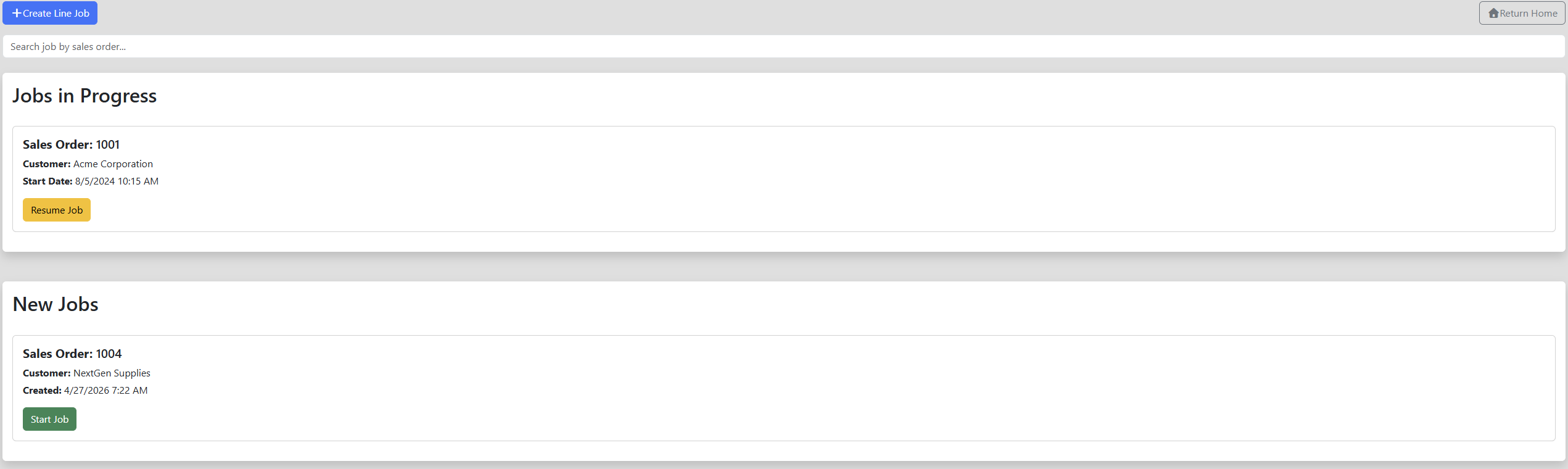
Upon navigating to the Lines 1 & 2 section, you will see the Available Line Jobs dashboard. This page displays:
- Started Jobs: Jobs that are currently active and being processed by an employee. You can resume these jobs to take ownership or continue progress.
- Created Jobs: Jobs that have been defined but not yet started.
Creating a New Job
To initiate a new cutting cycle, you must first create the job definition.
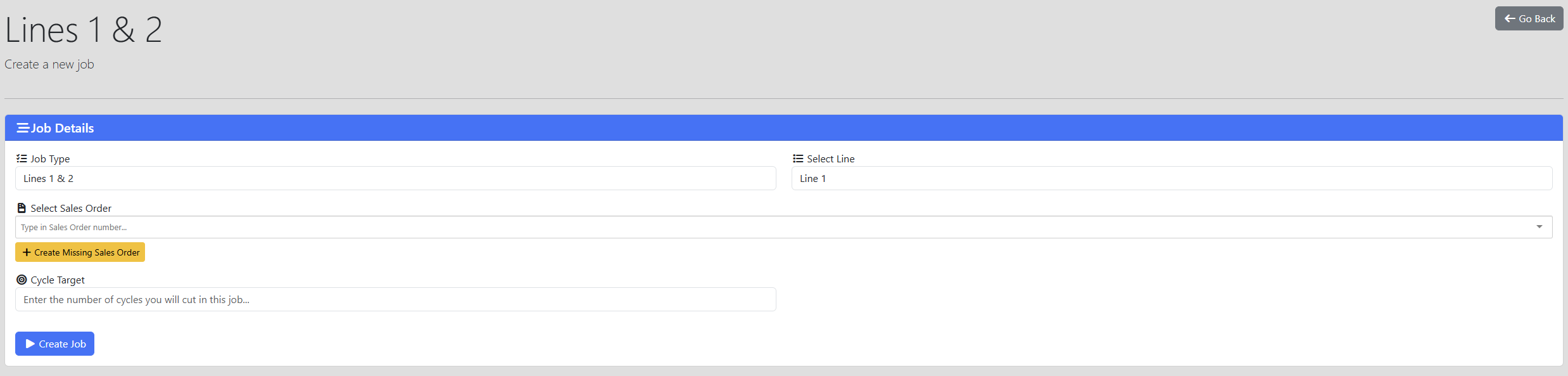
- Select the Job Type (either Lines 1 & 2 or Filling EIFS).
- Select the specific Line you will be operating on (Line 1 or Line 2).
- If applicable, select a Sales Order.
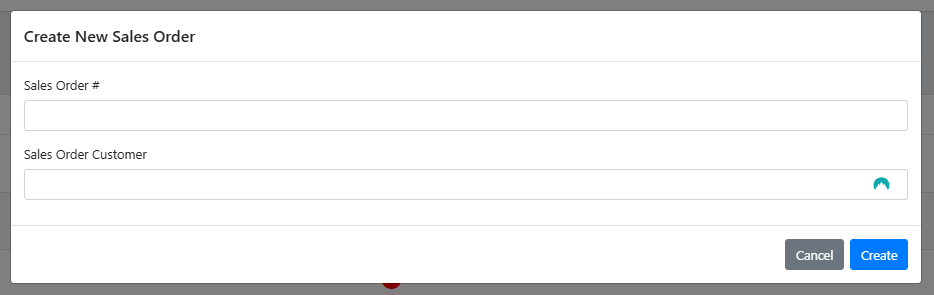
- Note: If the required sales order does not exist in the dropdown, you can click Create Missing Sales Order to immediately add it to the system.
- Enter the Cycle Target (the anticipated number of cycles or blocks you will process).
- Click Create Job.
Starting or Resuming a Job
After creating a job or selecting a "Created Job" from the available list, you must specify the employees working on the line.
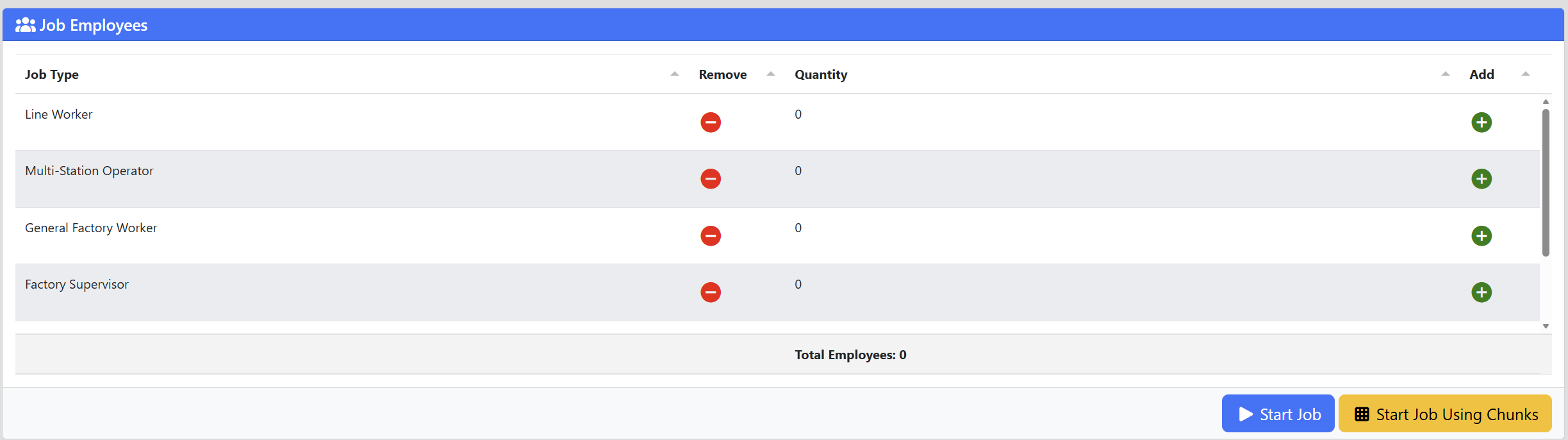
- Select the employees actively participating in the job.
- Choose how you want to start:
- Start Job: Uses standard block tracking where individual blocks are specifically assigned from inventory.
- Start Job Using Chunks: Uses chunk-based tracking, which hides the individual block selection tables (useful for processing partial scraps or non-standard shapes where specific block IDs aren't required).
Managing a Job In Progress
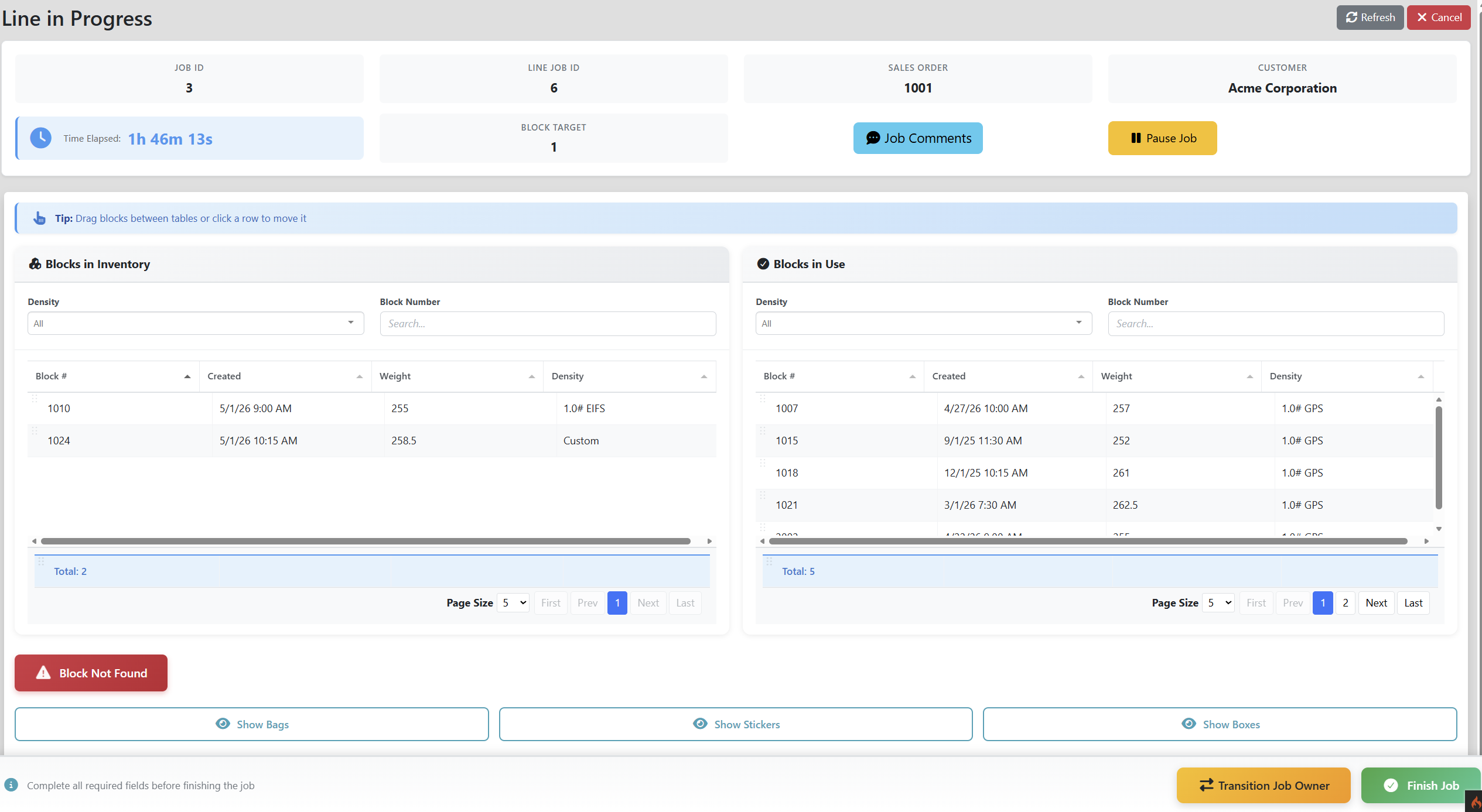
Once started, the active job screen becomes your primary workstation. It provides tools for tracking consumed inventory, job metrics, and time elapsed.
Block Tracking
For standard jobs, you must track the raw blocks you consume:
- Blocks in Inventory: Use the search bar or density filter to find available blocks. Click or drag them to move them into the "Blocks in Use" table as you process them.
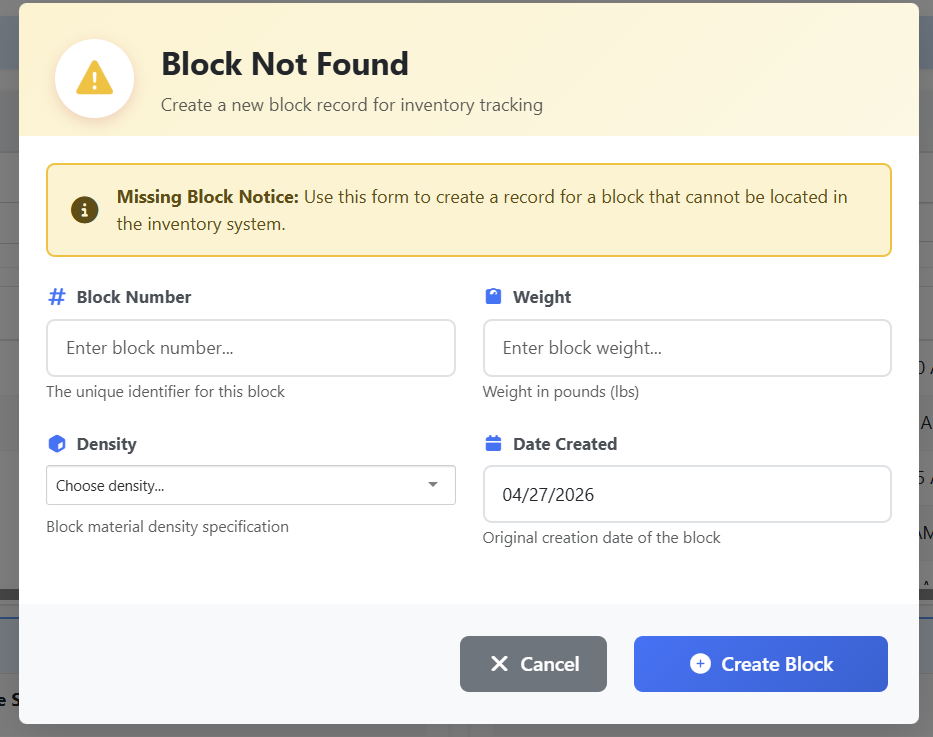
- Create Missing Block: If you physically have a block that is not listed in the inventory system, click the warning button to create a new block record, ensuring accurate raw material tracking.
Filling EIFS
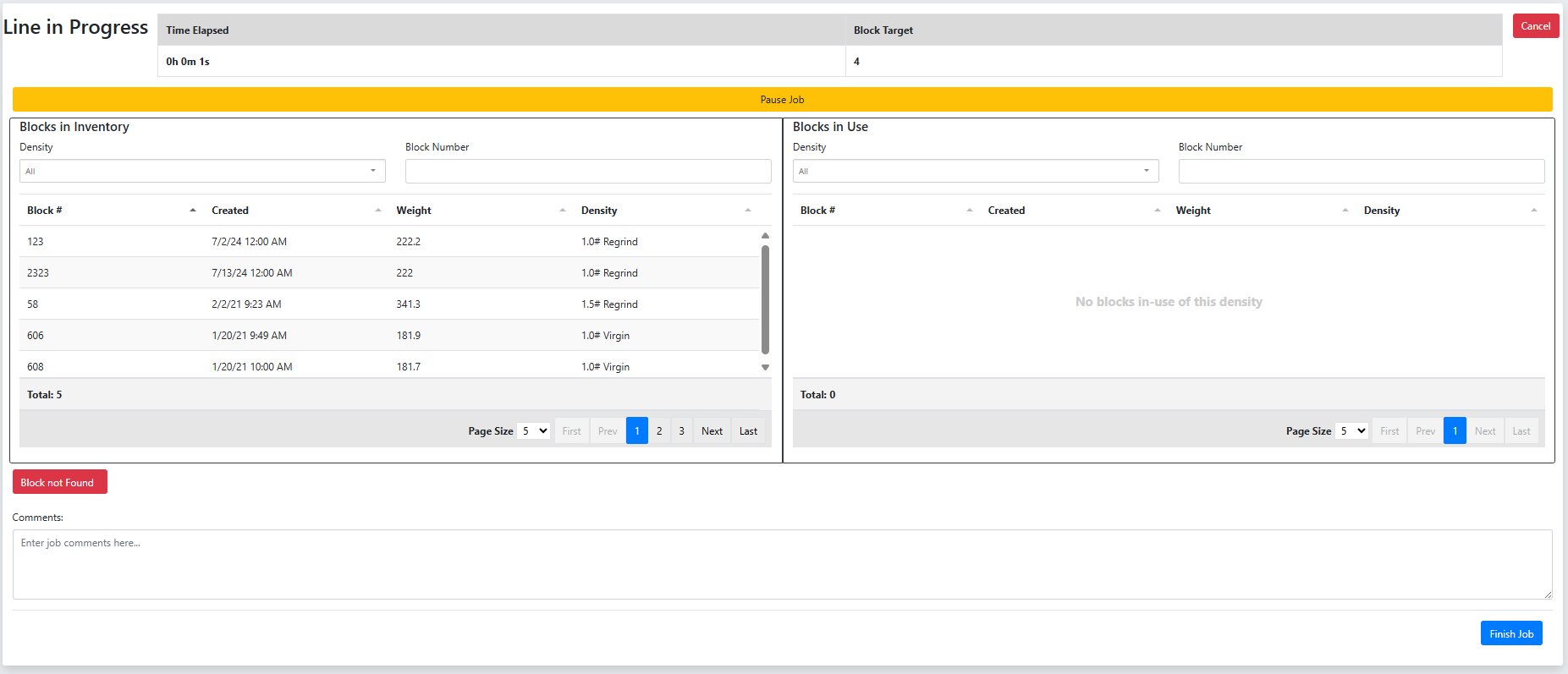
If your job type is "Filling EIFS", specific targets and metrics for EIFS block creation will be displayed. This ensures the output matches the requirements of the EIFS department.
Additional Inventory Consumed
If your job is tied to a Sales Order, you can expand specific inventory sections to record additional materials used during production:

- Show Bags: Record any packaging bags consumed.
- Show Stickers: Track product labels applied.
- Show Boxes: Log shipping boxes used.
Pausing and Transitioning
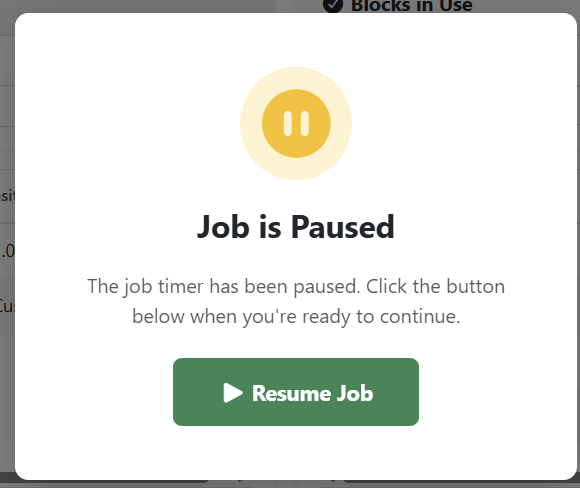
- Pause Job: Temporarily pauses the job timer. Use this during breaks or delays.
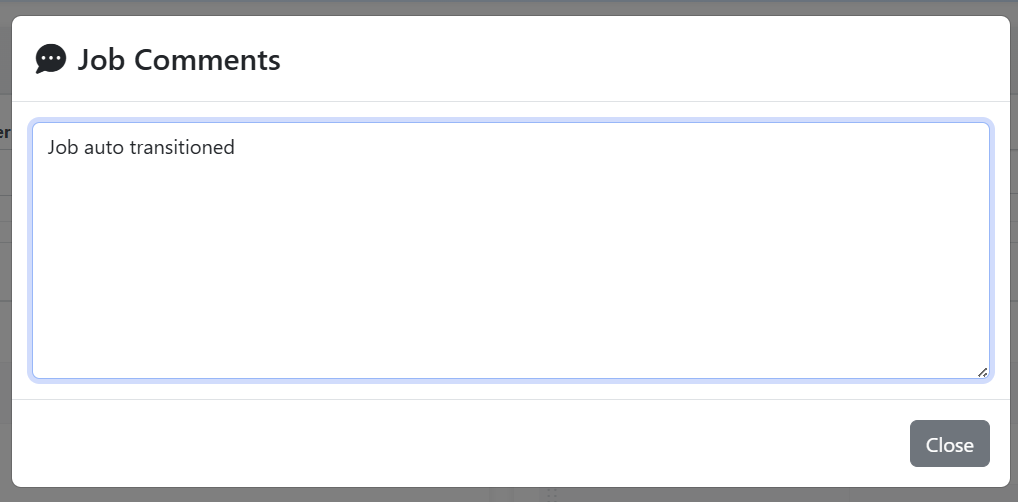
- Job Comments: Add qualitative notes about the production run or any issues encountered.
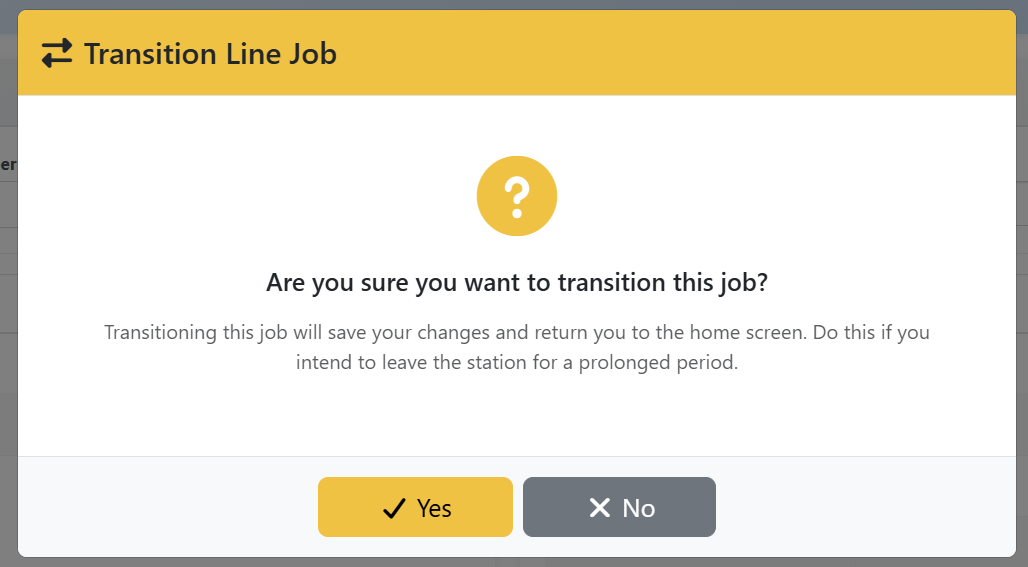
- Transition Job Owner: Use this if you are leaving the station but the job will continue. It saves your progress and allows the next employee to resume the job under their account.
Finishing a Job
Once all cycles are complete and all inventory (blocks, bags, stickers) has been properly accounted for, click the Finish Job button at the bottom of the screen.
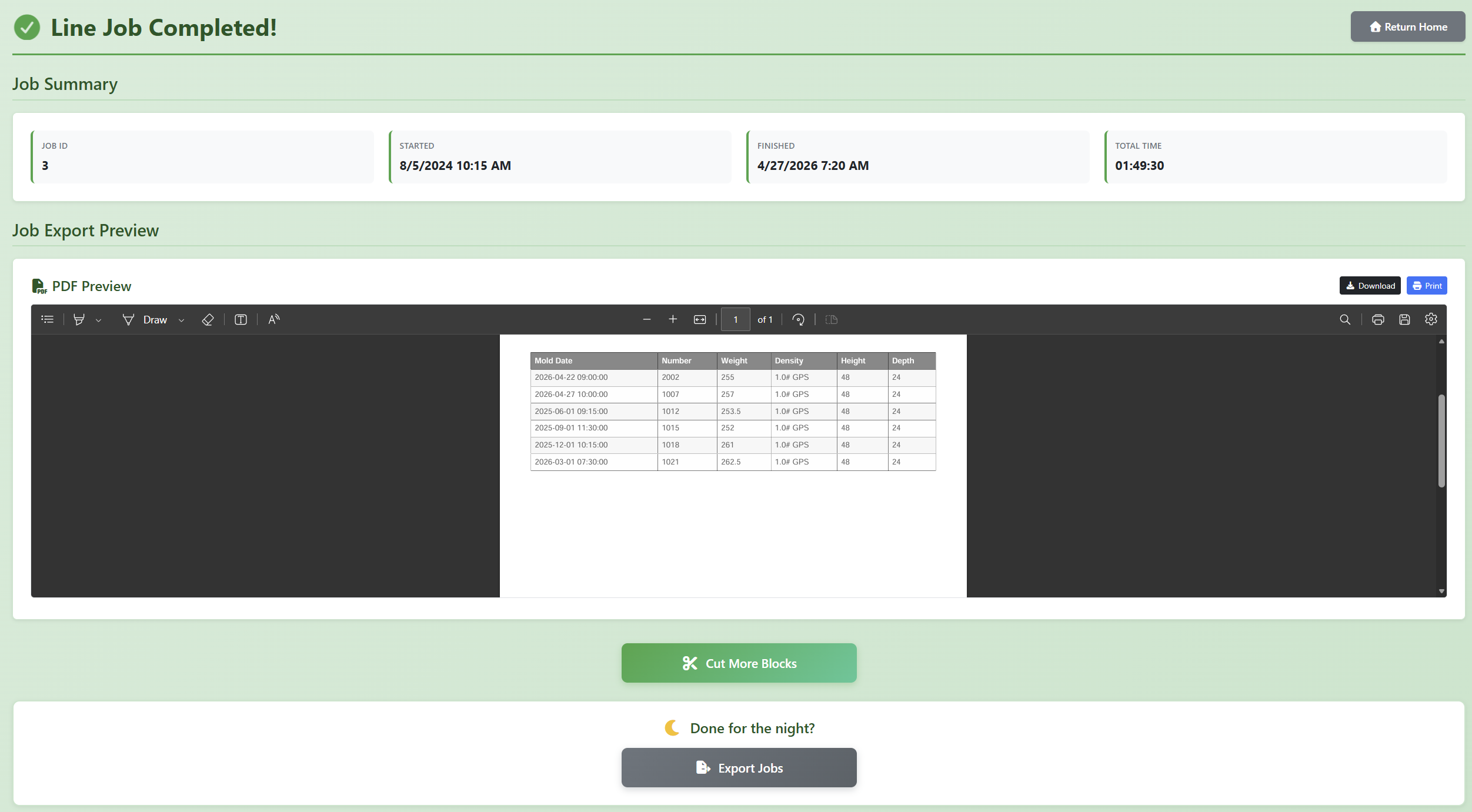
The system will permanently log the elapsed time, finalize the inventory deductions, and mark the job as complete. You will be shown a summary screen confirming the job success.