Pre-Puff Process

Overview

The Pre-Puff process is a specialized weighing and tracking system designed to record the weight of pre-puffed expandable polystyrene (EPS) bags as they are packaged for customer orders. Unlike other inventory operations in the Shelter Enterprises system, Pre-Puff operates through a unique hardware-software integration that combines network-enabled industrial scales, a central Python server application, and the web application to create a seamless data capture workflow.

This system is unique in the Shelter Enterprises ecosystem because it operates in parallel with a Python TCP/IP server (main.py) that acts as a central hub for multiple network-connected industrial scales. The scales are configured to send weight data over TCP/IP connections (typically on port 10001) to the Python server, which then forwards the data to the web application through authenticated API calls. This architecture allows multiple scales across different stations to connect to a single server instance running continuously in the background.

Primary Purpose:

  • Track individual bag weights for quality control and customer order fulfillment
  • Associate bag weights with specific Pre-Puff jobs and companies
  • Provide centralized data collection from multiple weighing stations
  • Maintain weight records for billing and production analysis

System Components:

  1. Network-Enabled Industrial Scales - Configured with TCP/IP client capability to send weight data
  2. Python TCP/IP Server - Central server (running on dedicated machine or server) that accepts connections from multiple scales
  3. Web Application - Receives weight data via API, validates against job parameters, stores records
  4. Operator Interface - Browser-based interface for starting jobs and monitoring progress across all stations

User Access: The Pre-Puff interface is available to users in the following groups:

  • prepuff - Standard Pre-Puff operators
  • admin - System administrators
  • factory_admin - Factory-level administrators

Workflow Overview:

  1. Operator starts a Pre-Puff job in the web application, selecting company, target specifications, and station
  2. Python server continuously listens on configured port (default: 10001) for scale connections
  3. Multiple scales connect to the server and maintain persistent TCP/IP connections
  4. Operator places filled Pre-Puff bag on scale and presses "Print" or trigger button
  5. Scale sends comma-separated data packet: [scale_id],[weight] [unit] (e.g., "2,25.3 lb")
  6. Python server parses the data and extracts scale ID, weight value, and unit
  7. Server sends weight to web application API with station identifier and scale ID via Bearer token authentication
  8. Web application validates weight against active job for that station (±10% tolerance)
  9. Application creates filler bag record and returns success/error response
  10. Server logs the transaction and waits for next weight reading
  11. Process repeats until job quantity is fulfilled or operator ends the job in web interface

Hardware Requirements:

  • Industrial scales with TCP/IP client capability (Ethernet or WiFi connectivity)
  • Scales must be configured to send data in format: [scale_id],[weight] [unit]
  • Server machine (Linux/Windows/Mac) to run Python TCP/IP server continuously
  • Network connectivity between scales and server (same LAN/VLAN)
  • Network connectivity from server to web application
  • Python 3.x with required libraries: socket, threading, requests, json, logging

Network Architecture: The Pre-Puff system operates on an intranet where:

  • Python Server listens on configured host and port (e.g., 0.0.0.0:10001)
  • Scales are configured as TCP/IP clients pointing to server IP and port
  • Each scale has a unique numeric ID (1, 2, 3, etc.) sent in data packet
  • Multi-threading allows simultaneous connections from multiple scales
  • Each scale connection is handled in a separate thread for concurrent processing
  • Server uses settings.json configuration file containing:
    • host: Server bind address (e.g., "0.0.0.0" for all interfaces)
    • port: TCP port number (e.g., 10001)
    • site_url: Web application base URL
    • controller: API controller path
    • function: API endpoint function name
    • api_key: Bearer token for API authentication
    • station: Station identifier for this server instance

![INSERT SCREENSHOT HERE: Network diagram showing multiple scales (Scale 1, Scale 2, Scale 3) connecting via TCP/IP to central Python Server (port 10001), which then communicates with Web Application via HTTPS API calls. Include IP addresses and port numbers.]

Key Features:

  • Centralized Server Architecture - Single server handles multiple scales simultaneously
  • Multi-threaded Connection Handling - Each scale connection runs in dedicated thread
  • Automatic Logging - Rotating daily log files with 7-day retention
  • Dual Logging Output - Logs to both file (logs/log-YYYY-MM-DD.txt) and console (stdout)
  • Persistent Connections - Scales maintain open connections for immediate data transmission
  • Scale ID Routing - Each scale identified by numeric ID in data stream
  • Multi-Station Support - System supports multiple weighing stations with different scale IDs
  • Job-Based Tracking - All bags are associated with specific Pre-Puff jobs and companies
  • Historical Records - Complete audit trail of bag weights, timestamps, and operators

Data Format: Scales send data in comma-separated format over TCP socket:

[scale_id],[weight] [unit]

Examples:

  • 1,25.3 lb - Scale 1 reporting 25.3 pounds
  • 2,11.5 kg - Scale 2 reporting 11.5 kilograms
  • 3,450.2 oz - Scale 3 reporting 450.2 ounces

The server parses this data by:

  1. Receiving 16 bytes from socket connection
  2. Splitting on comma to extract scale ID and weight string
  3. Splitting weight string on space to extract numeric value and unit
  4. Forwarding parsed data to web application API

Quality Control: The web application enforces quality standards by:

  • Validating each bag weight against target specifications (±10% tolerance)
  • Tracking which station/scale weighed each bag
  • Recording exact weights (not just pass/fail) for statistical analysis
  • Preventing bags from being recorded when no job is active for that station
  • Returning error messages if weight is out of tolerance or no job exists

![INSERT SCREENSHOT HERE: Terminal/console view showing Python server startup with log messages indicating "Server is listening for scales..." and connection messages showing scale IP addresses connecting.]


Front-End Behavior

Web Application Interface

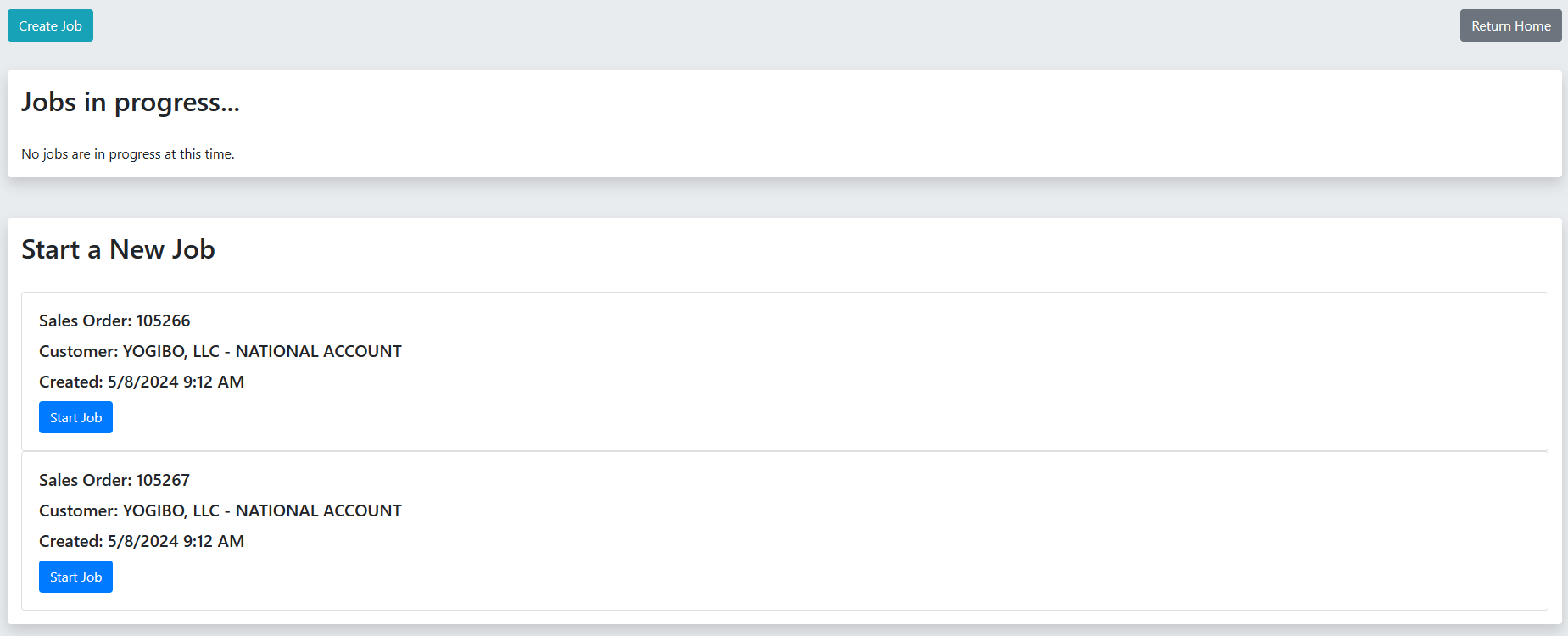
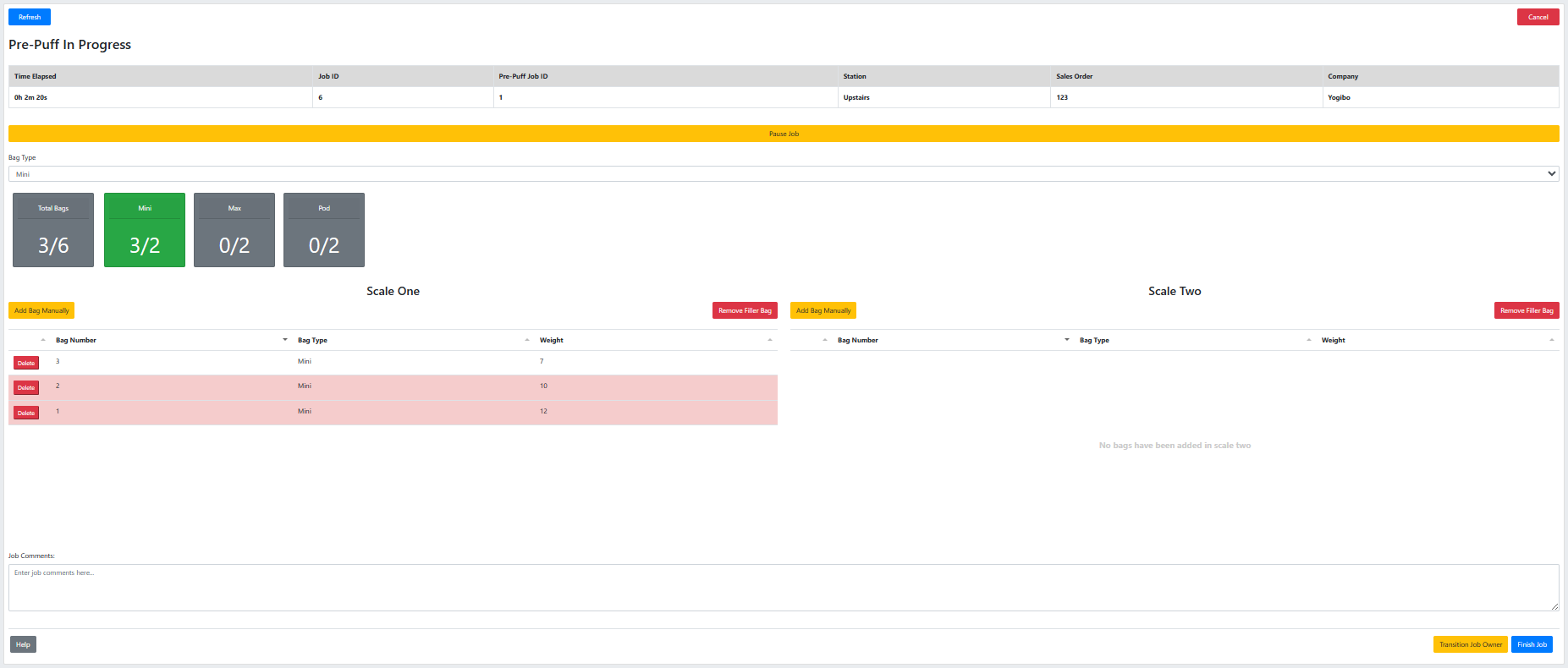
The Pre-Puff interface consists of the job management page where operators start jobs, monitor progress, and view completion status. Unlike the old system, there is no Raspberry Pi display interface - all interaction occurs through the web browser.

Job Management Page

Page Location: /prepuff/view

The job management page provides operators with tools to start, monitor, and complete Pre-Puff jobs.

Header Section:

  • Page title: "Pre-Puff" (Display-4 heading)
  • Return Home button (top-right) - Returns user to /user/view
  • Current user display showing logged-in operator name

Active Jobs Section: Displays all currently running Pre-Puff jobs across all stations with the following information:

  • Company Name - Which Pre-Puff company the job is for
  • Target Weight - Specified bag weight goal (in lbs)
  • Bags Completed - Current count vs. target quantity (e.g., "45 / 100")
  • Progress Bar - Visual representation of job completion percentage
  • Station ID - Which weighing station is handling this job
  • Started By - Operator who initiated the job
  • Start Time - Timestamp when job began
  • Actions:
    • View Details button - Shows detailed bag-by-bag weight records
    • End Job button - Completes the job (requires confirmation)

![INSERT SCREENSHOT HERE: Full view of the Pre-Puff job management page showing the active jobs table with multiple jobs in progress, progress bars, and action buttons.]

Start New Job Section: Below the active jobs table, operators can initiate new Pre-Puff jobs:

Form Fields:

  1. Pre-Puff Company (Dropdown)

    • Lists all active Pre-Puff companies from database
    • Required field with validation
    • Example companies: "Company A", "Company B", "Customer XYZ"
  2. Target Weight (Number Input)

    • Specifies the desired bag weight in pounds
    • Required field with validation
    • Accepts decimal values (e.g., 25.5)
    • System applies ±10% tolerance automatically
    • Placeholder text: "Enter target weight in lbs"
  3. Quantity (Number Input)

    • Total number of bags to be weighed for this job
    • Required field with validation
    • Integer values only
    • Placeholder text: "Number of bags"
  4. Station ID (Dropdown)

    • Selects which weighing station will handle this job
    • Corresponds to the station configured in settings.json on the Python server
    • Example values: "Station 1", "Station 2", "Station 3"
    • Prevents multiple jobs from being assigned to same station simultaneously
  5. Start Job (Submit Button)

    • Green button with white text
    • Validates all fields before submission
    • Shows confirmation modal before creating job

Form Validation:

  • All fields are required
  • Target weight must be greater than 0
  • Quantity must be a positive integer
  • Station must not already have an active job
  • Pre-Puff company must exist in database

Error Handling:

  • Validation errors display below form fields in red text
  • Toast notifications appear for successful job creation
  • Duplicate station assignment shows warning: "Station already has an active job"

![INSERT SCREENSHOT HERE: Close-up of the "Start New Job" form showing all input fields, dropdown selections, and the green "Start Job" button.]

Active Job Monitoring Display

Real-Time Updates: The active jobs table refreshes automatically (via AJAX/polling or WebSocket) to show:

  • New bags added to jobs as they are weighed
  • Progress bar updates as bags are weighed
  • Job completion status changes
  • Bag count increments in real-time

Progress Visualization:

  • Progress Bar Colors:
    • Blue (0-99% complete)
    • Green (100% complete)
  • Percentage Display: Shows exact completion percentage next to bar

Bag Details Modal: Clicking "View Details" opens a modal window showing:

  • Table of all weighed bags with columns:
    • Bag Number (sequential ID)
    • Weight (lbs with 2 decimal precision)
    • Timestamp (date and time weighed)
    • Scale ID (which scale weighed this bag)
    • Status (✓ Accepted or ✗ Rejected based on tolerance)
  • Summary Statistics:
    • Average weight across all bags
    • Minimum weight recorded
    • Maximum weight recorded
    • Standard deviation
    • Acceptance rate percentage
  • Export Options:
    • Download as CSV
    • Download as PDF report

![INSERT SCREENSHOT HERE: Screenshot of the bag details modal showing the table of weighed bags with weights, timestamps, scale IDs, and acceptance status indicators.]

Job Completion: When a job reaches its target quantity:

  • Progress bar turns green and shows 100%
  • Toast notification alerts operator: "Job completed for [Company Name]"
  • "End Job" button remains available to formally close the job
  • Station becomes available for new job assignment once ended

Scale Operator Workflow

Physical Scale Interface: Since the scales are network-connected devices sending data directly to the Python server, operators interact only with the scale's built-in display and buttons:

  1. Scale Display - Shows current weight in configured unit
  2. Print/Send Button - Triggers data transmission to server
  3. Tare/Zero Button - Zeros the scale between weighings

Operator Process at Weighing Station:

  1. Operator checks web interface to confirm their station has an active job
  2. Operator places empty bag or container on scale
  3. Operator presses "Tare" to zero the scale
  4. Operator fills the bag with pre-puffed material
  5. Operator verifies weight is approximately on target using scale display
  6. Operator presses "Print" or "Send" button on scale
  7. Scale sends weight data to Python server via TCP/IP
  8. Server forwards data to web application
  9. Web application validates weight and creates record
  10. Operator can check web interface for confirmation (bag count increments)
  11. Operator removes bag and repeats process

No Visual Feedback at Scale: Unlike the old Tkinter GUI system, this architecture provides no immediate visual feedback at the physical scale location. Operators must:

  • Trust that the weight was accepted if the web interface bag count increases
  • Periodically check the web interface for job progress
  • Rely on the scale's built-in display to gauge if weight is close to target

Optional Enhancement: Some facilities may place a monitor at each weighing station showing the web interface job monitoring page in fullscreen mode, providing operators with real-time visual feedback of:

  • Current bag count
  • Progress percentage
  • Last bag weight accepted
  • Job status

![INSERT SCREENSHOT HERE: Photo or diagram of physical scale setup showing the scale unit, its display showing weight, and the Print/Send button that triggers data transmission.]

Interactive Elements

Job Action Buttons:

  • View Details:

    • Opens modal with detailed bag records
    • No page navigation, stays in context
    • Modal can be closed with X button or clicking outside
    • Shows all historical data for the job
  • End Job:

    • Shows confirmation dialog: "Are you sure you want to end this job?"
    • Requires explicit confirmation to prevent accidental closure
    • Updates job status to "completed" in database
    • Frees station for new job assignment
    • Does not affect bags already recorded

Start Job Button:

  • Performs client-side validation before submission
  • Disables during submission to prevent duplicate jobs
  • Shows loading spinner during API call
  • Re-enables if validation fails
  • Displays success toast notification on job creation

Responsive Design:

  • Table view adapts to smaller screens by:
    • Stacking columns vertically on mobile
    • Scrollable table wrapper for wide data
    • Touch-friendly button sizes (min 44px height)
  • Form fields stack vertically on mobile devices
  • Progress bars maintain visibility at all screen sizes
  • Modal dialogs are mobile-responsive

Complete Operator Workflow:

  1. Operator logs into web application
  2. Navigates to Pre-Puff page (/prepuff/view)
  3. Fills out "Start New Job" form with company, target weight, quantity, and station
  4. Clicks "Start Job" and confirms in modal
  5. System validates and creates job record
  6. Job appears in "Active Jobs" table with 0% progress
  7. Operator goes to physical weighing station
  8. Operator verifies scale is connected (Python server shows connection in logs)
  9. Operator places bag on scale and fills to approximate target weight
  10. Operator presses "Print/Send" button on scale
  11. Scale transmits data to Python server
  12. Python server parses data and forwards to web application API
  13. Web application validates weight and creates filler bag record
  14. Operator checks web interface - bag count increments
  15. Progress bar updates
  16. Operator repeats weighing process until quantity is reached
  17. System shows 100% progress with green bar
  18. Operator clicks "End Job" to formally close
  19. Station becomes available for new jobs

Error Scenarios:

  • No Active Job:

    • Scale sends weight but no job is active for that station
    • Web application returns error response
    • Python server logs error message
    • Operator must start a job before weighing
  • Weight Out of Tolerance:

    • Scale sends weight outside ±10% of target
    • Web application may reject or flag the bag
    • Bag may be recorded but marked as out-of-spec
    • Operator should adjust filling process
  • Network Failure:

    • Scale unable to connect to Python server
    • Python server logs show disconnection
    • Operator should check network connectivity
  • Server to Web App Failure:

    • Python server receives data but cannot reach web application API
    • Server logs "Request timed out" or HTTP error
    • Data is lost unless retry logic exists

Back-End Logic

Python TCP/IP Server Architecture

File Location: main.py (scale-app project)

The Python server acts as a bridge between network-enabled scales and the web application, handling multiple concurrent scale connections and forwarding weight data through authenticated API calls.

Core Components

1. Server Initialization (main() function)

def main():
# Set up a TCP/IP server
server = socket.socket(socket.AF_INET, socket.SOCK_STREAM)

# Bind the socket to server address and port 10001
server_address = (settings['host'], settings['port'])
server.bind(server_address)

# Listen on port 10001
server.listen()
print('Server is listening for scales...')

while True:
connection, address = server.accept()
threading.Thread(target=handler, args=(connection, address)).start()

Behavior:

  • Creates TCP socket server bound to configured host/port (e.g., 0.0.0.0:10001)
  • Enters infinite loop accepting incoming connections
  • For each new connection, spawns a dedicated thread running handler() function
  • Allows multiple scales to connect simultaneously without blocking

2. Connection Handler (handler() function)

def handler(connection, address):
try:
print("Connected to scale with IP: {}".format(address))

while True:
data = connection.recv(16).decode()

# Assuming data is comma-separated, split it into a list
data_list = data.split(',')

# TODO: Update this temporary fix
# Temporary fix for third scale being used as replacement
if data_list[0] == 3:
scale_id = 2
else:
scale_id = data_list[0]

weight_data = data_list[1].strip().split(' ')
weight = weight_data[0]
unit = weight_data[1]
print("Scale ID: " + scale_id)
print("Weight: " + weight + " " + unit)

send_data(weight, unit, scale_id)

if not data:
break

finally:
connection.close()

Behavior:

  • Receives up to 16 bytes from scale connection
  • Parses comma-separated data format: [scale_id],[weight] [unit]
  • Extracts scale ID, weight value, and unit
  • Includes temporary workaround mapping scale 3 to scale 2 (hardware replacement scenario)
  • Calls send_data() to forward to web application
  • Maintains connection until scale disconnects or sends empty data
  • Closes connection in finally block to ensure cleanup

Data Parsing Logic:

  1. Split on comma: ["2", "25.3 lb"]
  2. Extract scale ID from data_list[0]
  3. Strip whitespace from weight string: "25.3 lb"
  4. Split on space: ["25.3", "lb"]
  5. Extract weight value: "25.3"
  6. Extract unit: "lb"

3. API Communication (send_data() function)

def send_data(weight, unit, scale):
# The location of the website function to scan a bag in
scan_function = settings['site_url'] + settings['controller'] + '/' + settings['function']

# Header with Bearer token for API auth
headers = {"Authorization": "Bearer " + settings['api_key']}

# data to be sent to api
data = {
'weight': weight,
'unit': unit,
'scale': scale,
'station': settings['station']
}

# sending post request and saving response as response object
try:
response = requests.post(url=scan_function, data=data, timeout=10, headers=headers)
except TimeoutError:
logging.error('Request timed out...')
return False

# extracting response text
print_response(response)

Behavior:

  • Constructs API endpoint URL from settings (e.g., https://app.example.com/api/prepuff/scan_bag)
  • Creates Bearer token authentication header
  • Builds POST data payload with weight, unit, scale ID, and station ID
  • Sends HTTP POST request with 10-second timeout
  • Catches timeout exceptions and logs errors
  • Delegates response handling to print_response()

POST Data Structure:

{
"weight": "25.3",
"unit": "lb",
"scale": "2",
"station": "Station 1"
}

4. Response Handling (print_response() function)

def print_response(response):
"""
Prints out the web server's response to the POST request
"""
logging.debug(f'Response from the server: {response.text}')
print(f'Response from the server: {response.text}')

if response.status_code != 200:
logging.error('Something went wrong with the request')
pass
else:
logging.info('Parsed data successfully emitted to server')
print('Parsed data successfully emitted to server')

Behavior:

  • Logs full response text at DEBUG level
  • Prints response to console (stdout)
  • Checks HTTP status code
  • Logs error if non-200 status
  • Logs success message for 200 OK responses
  • Does not parse or return response data (fire-and-forget pattern)

5. Settings Management (get_settings() function)

def get_settings(settings_f_name: str = 'settings.json') -> dict:
"""
Read settings from file

Returns:
dict[str]: Settings placed into a dictionary
"""
logger.info('Fetching settings')

with open(settings_f_name, 'r') as f:
settings = json.load(f)
f.close()

return settings

Behavior:

  • Reads configuration from settings.json file
  • Parses JSON into Python dictionary
  • Returns settings for use throughout application

settings.json Structure:

{
"host": "0.0.0.0",
"port": 10001,
"site_url": "https://app.shelter.example.com",
"controller": "/api/prepuff",
"function": "scan_bag",
"api_key": "Bearer_Token_String_Here",
"station": "Station 1"
}

6. Logging Configuration

The script implements comprehensive logging with both file and console output:

File Logging:

  • Uses TimedRotatingFileHandler for automatic log rotation
  • Rotates daily at midnight
  • Keeps 7 days of backup logs
  • Filename format: logs/log-YYYY-MM-DD.txt
  • Log level: DEBUG (captures all messages)

Console Logging:

  • Uses StreamHandler writing to stdout
  • Log level: INFO (shows important events only)
  • Formatted with timestamp: [LEVEL]: YYYY-MM-DD HH:MM:SS - message

Log Events:

  • DEBUG: API response text from web application
  • INFO: Settings fetch, successful data emission
  • ERROR: Request timeouts, non-200 HTTP responses, connection failures

Web Application Back-End

Controller Location: src/app/Controllers/Prepuff.php (assumed)

The web application handles job management and weight validation.

Pre-Puff Job Management

View Controller: Prepuff::view()

Route: /prepuff/view

Responsibilities:

  • Renders the Pre-Puff job management page
  • Loads active Pre-Puff jobs from database
  • Provides dropdown data for Pre-Puff companies and stations
  • Enforces user group permissions (prepuff, admin, factory_admin)

Expected Data Loaded:

$data['prepuff_companies'] = Prepuff_company_model::all();
$data['active_jobs'] = Prepuff_job_model::where('status', '=', 'active')->get();
$data['stations'] = ['Station 1', 'Station 2', 'Station 3']; // or from config
$data['user_full_name'] = auth()->user()->first_name . " " . auth()->user()->last_name;

API Endpoints

API Controller: src/app/Controllers/Api/Prepuff.php (assumed)

Endpoint: scan_bag() - POST

Route: /api/prepuff/scan_bag

Purpose: Receives weight data from Python server and creates filler bag records

Request Parameters:

  • weight (required, numeric) - Weight value from scale
  • unit (required, string) - Unit of measurement (lb, kg, oz)
  • scale (required, numeric) - Scale ID from data packet
  • station (required, string) - Station identifier from settings.json

Authentication: Bearer token (validated via middleware or header check)

Expected Logic:

public function scan_bag(): ResponseInterface
{
// Validate incoming data
$rules = [
'weight' => 'required|numeric',
'unit' => 'required|in_list[lb,kg,oz]',
'scale' => 'required|numeric',
'station' => 'required|string'
];

if (!$this->validation->run($this->request->getPost(), $rules)) {
return $this->fail($this->validation->getErrors(), 400);
}

$validated = $this->validation->getValidated();

// Find active job for this station
$active_job = Prepuff_job_model::where('station', $validated['station'])
->where('status', 'active')
->first();

if (!$active_job) {
return $this->fail('No active job found for this station', 404);
}

// Convert weight to pounds if necessary
$weight_in_lbs = $this->convertToPounds($validated['weight'], $validated['unit']);

// Calculate tolerance (±10%)
$target = $active_job->target_weight;
$min_weight = $target * 0.9;
$max_weight = $target * 1.1;

// Validate weight is within tolerance
$in_tolerance = ($weight_in_lbs >= $min_weight && $weight_in_lbs <= $max_weight);

// Create filler bag record
$filler_bag = new Filler_bag_model();
$filler_bag->prepuff_job_id = $active_job->id;
$filler_bag->weight = $weight_in_lbs;
$filler_bag->unit = 'lb';
$filler_bag->scale_id = $validated['scale'];
$filler_bag->in_tolerance = $in_tolerance;
$filler_bag->weighed_at = date('Y-m-d H:i:s');
$filler_bag->save();

// Update job bag count
$active_job->bags_completed++;
if ($active_job->bags_completed >= $active_job->quantity) {
$active_job->status = 'completed';
}
$active_job->save();

return $this->respond([
'success' => true,
'bag_id' => $filler_bag->id,
'bag_num' => $active_job->bags_completed,
'in_tolerance' => $in_tolerance,
'job_complete' => ($active_job->status === 'completed')
]);
}

Response Examples:

Success (200 OK):

{
"success": true,
"bag_id": 12345,
"bag_num": 47,
"in_tolerance": true,
"job_complete": false
}

Error - No Active Job (404):

{
"error": "No active job found for this station"
}

Error - Validation Failed (400):

{
"error": {
"weight": "The weight field is required",
"unit": "The unit field must contain one of: lb, kg, oz"
}
}

Endpoint: start_job() - POST

Route: /api/prepuff/start_job or form submission endpoint

Purpose: Creates a new Pre-Puff job

Request Parameters:

  • prepuff_company_id (required, numeric) - Company ID
  • target_weight (required, numeric, greater than 0) - Target bag weight in lbs
  • quantity (required, integer, greater than 0) - Number of bags needed
  • station (required, string) - Station identifier

Validation Rules:

$rules = [
'prepuff_company_id' => 'required|is_not_unique[prepuff_company.id]',
'target_weight' => 'required|numeric|greater_than[0]',
'quantity' => 'required|integer|greater_than[0]',
'station' => 'required|string'
];

// Additional check: Station must not have active job
$existing_job = Prepuff_job_model::where('station', $station)
->where('status', 'active')
->first();
if ($existing_job) {
return $this->fail('Station already has an active job', 409);
}

Logic:

  • Validates all fields
  • Checks station availability
  • Creates new prepuff_job record
  • Sets initial values:
    • bags_completed: 0
    • status: 'active'
    • started_by_id: current user ID
    • started_at: current timestamp

Endpoint: end_job() - POST

Route: /api/prepuff/end_job

Purpose: Formally closes a Pre-Puff job

Request Parameters:

  • job_id (required, numeric) - Job ID to end

Logic:

  • Finds job by ID
  • Updates status to 'completed'
  • Sets ended_at timestamp
  • Sets ended_by_id to current user ID
  • Frees station for new job assignment

Database Tables

Table: prepuff_job

Stores Pre-Puff job records.

ColumnTypeDescription
idINT (PK)Primary key
prepuff_company_idINT (FK)References prepuff_company.id
target_weightDECIMAL(10,2)Target bag weight in lbs
quantityINTTotal bags needed
bags_completedINTCurrent bag count (default: 0)
stationVARCHAR(50)Station identifier
statusENUM'active' or 'completed'
started_by_idINT (FK)User who started job
started_atDATETIMEJob start timestamp
ended_by_idINT (FK, NULL)User who ended job
ended_atDATETIME (NULL)Job end timestamp
created_atDATETIMERecord creation
updated_atDATETIMERecord last update

Table: filler_bag

Stores individual weighed bag records.

ColumnTypeDescription
idINT (PK)Primary key
prepuff_job_idINT (FK)References prepuff_job.id
weightDECIMAL(10,2)Bag weight in lbs
unitVARCHAR(10)Unit of measurement
scale_idINTScale that weighed this bag
in_toleranceBOOLEANWhether weight was within ±10%
weighed_atDATETIMEWhen bag was weighed
created_atDATETIMERecord creation
updated_atDATETIMERecord last update

Table: prepuff_company

Stores Pre-Puff customer companies.

ColumnTypeDescription
idINT (PK)Primary key
nameVARCHAR(255)Company name
activeBOOLEANWhether company is active
created_atDATETIMERecord creation
updated_atDATETIMERecord last update

Authentication & Authorization

Python Server Authentication:

  • Uses Bearer token stored in settings.json
  • Token sent in HTTP Authorization header: Authorization: Bearer [token]
  • Web application validates token via middleware or controller check

Web Application Authentication:

  • Users must be authenticated via CodeIgniter Shield
  • Session-based authentication for web interface
  • API endpoints use Bearer token authentication

Authorization Groups:

  • prepuff - Can view Pre-Puff page, start/end jobs, view details
  • admin - Full access to all Pre-Puff functions
  • factory_admin - Full access to all Pre-Puff functions

Permission Check Example:

if (!auth()->user()->inGroup('prepuff', 'admin', 'factory_admin')) {
return redirect()->to('/')->with('error', 'Access denied');
}

Data Flow Summary

Complete Data Flow:

  1. Operator starts job in web app

    • Browser → Web Server → Database (creates prepuff_job record)
  2. Operator weighs bag

    • Scale → TCP/IP → Python Server (receives data on port 10001)
  3. Python server forwards data

    • Python Server → HTTPS POST → Web Application API (/api/prepuff/scan_bag)
    • Includes: weight, unit, scale ID, station ID, Bearer token
  4. Web application processes weight

    • Finds active job for station
    • Validates weight against target ±10%
    • Creates filler_bag record
    • Increments job bags_completed
    • Returns success response
  5. Logging and confirmation

    • Python Server logs success/error
    • Operator checks web interface for updated bag count
    • Process repeats until job quantity reached
  6. Job completion

    • When bags_completed >= quantity, job status → 'completed'
    • Operator can formally end job via "End Job" button
    • Station freed for new job

Developer Notes

Python Server Deployment

Installation Requirements:

  • Python 3.x (tested with Python 3.7+)
  • Required libraries:
    • socket (built-in)
    • threading (built-in)
    • requests (install via pip)
    • json (built-in)
    • logging (built-in)

Installation Steps:

# Install Python dependencies
pip install requests

# Create logs directory
mkdir logs

# Create settings.json configuration file
nano settings.json

settings.json Configuration:

{
"host": "0.0.0.0",
"port": 10001,
"site_url": "https://your-app-domain.com",
"controller": "/api/prepuff",
"function": "scan_bag",
"api_key": "your_bearer_token_here",
"station": "Station 1"
}

Configuration Notes:

  • host: Use "0.0.0.0" to listen on all network interfaces, or specific IP for single interface
  • port: Default 10001, ensure port is not blocked by firewall
  • site_url: Full base URL of web application (include https://)
  • controller + function: Combine to form full API endpoint path
  • api_key: Generate via web application admin panel or database
  • station: Must match station identifier used in web application

Running the Server:

Manual start:

python main.py

Running as background service (Linux with systemd):

# Create systemd service file
sudo nano /etc/systemd/system/prepuff-server.service

Service file content:

[Unit]
Description=Pre-Puff Scale Server
After=network.target

[Service]
Type=simple
User=youruser
WorkingDirectory=/path/to/scale-app
ExecStart=/usr/bin/python3 /path/to/scale-app/main.py
Restart=always
RestartSec=10

[Install]
WantedBy=multi-user.target

Enable and start service:

sudo systemctl enable prepuff-server
sudo systemctl start prepuff-server
sudo systemctl status prepuff-server

Monitoring Logs:

# View real-time console output
sudo journalctl -u prepuff-server -f

# View rotating log files
tail -f logs/log-2025-10-28.txt

Scale Configuration

Network Configuration: Scales must be configured as TCP/IP clients to connect to the Python server.

Required Settings:

  • Protocol: TCP/IP Client
  • Server IP: IP address of machine running Python server
  • Server Port: 10001 (or configured port)
  • Data Format: Comma-separated values
  • Data Structure: [scale_id],[weight] [unit]

Example Scale Configuration (varies by manufacturer):

  1. Enter scale setup/configuration mode
  2. Navigate to Communication or Network settings
  3. Set mode to "TCP Client" or "Ethernet Client"
  4. Enter server IP address (e.g., 192.168.1.100)
  5. Enter server port (e.g., 10001)
  6. Configure data output format to send on button press
  7. Set data format to include scale ID and weight
  8. Test connection and data transmission

Supported Units:

  • lb - Pounds
  • kg - Kilograms
  • oz - Ounces

The web application will convert all weights to pounds for storage and comparison.

Scale ID Assignment

Temporary Scale Replacement Workaround:

The current code includes a temporary fix for scale hardware replacement:

# TODO: Update this temporary fix
# Temporary fix for third scale being used as replacement
if data_list[0] == 3:
scale_id = 2
else:
scale_id = data_list[0]

Why This Exists:

  • Scale 2 was temporarily replaced with a spare scale configured as ID 3
  • This mapping ensures data is still associated with Station 2
  • This is a temporary workaround and should be updated when permanent scale is installed

Proper Scale ID Management:

  • Each physical scale should have a unique, permanent ID (1, 2, 3, etc.)
  • Scale ID should be configured in the scale's network settings
  • Multiple scales can connect to one server, each with unique ID
  • The server logs which scale IP address sent each weight for troubleshooting

Best Practice: Remove the temporary fix once hardware is permanently installed:

scale_id = data_list[0]  # Direct assignment, no mapping

Adding a New Station

To add a new weighing station:

1. Configure the Scale:

  • Assign unique scale ID (e.g., 4)
  • Set server IP and port to point to Python server
  • Test connectivity

2. Update Web Application: Add station to dropdown options in view:

// In Prepuff controller or config
$data['stations'] = ['Station 1', 'Station 2', 'Station 3', 'Station 4'];

Or load from database if stations are stored in stations table.

3. No Python Server Changes Needed: The server automatically accepts connections from any scale and forwards data with the station ID from settings.json. If running multiple server instances (one per station), deploy another instance with different station value in settings.json.

4. Test Data Flow:

  • Start a job for the new station in web interface
  • Place weight on scale and press Print/Send
  • Verify data appears in web application
  • Check Python server logs for successful transmission

Web Application Development

Adding Pre-Puff Company:

Pre-Puff companies are typically managed via admin interface. To add programmatically:

$company = new Prepuff_company_model();
$company->name = "New Company Name";
$company->active = 1;
$company->save();

Querying Job Statistics:

Get average bag weight for a job:

$avg_weight = Filler_bag_model::where('prepuff_job_id', $job_id)
->avg('weight');

Get bags outside tolerance:

$out_of_spec = Filler_bag_model::where('prepuff_job_id', $job_id)
->where('in_tolerance', 0)
->get();

Get completion percentage:

$job = Prepuff_job_model::find($job_id);
$percentage = ($job->bags_completed / $job->quantity) * 100;

Real-Time Updates:

Consider implementing one of these approaches for live bag count updates:

Option 1: AJAX Polling

// Poll every 3 seconds
setInterval(function() {
$.ajax({
url: '/api/prepuff/get_active_jobs',
method: 'GET',
success: function(data) {
updateJobsTable(data);
}
});
}, 3000);

Option 2: Server-Sent Events (SSE)

// Controller endpoint
public function job_updates()
{
header('Content-Type: text/event-stream');
header('Cache-Control: no-cache');

while (true) {
$jobs = Prepuff_job_model::where('status', 'active')->get();
echo "data: " . json_encode($jobs) . "\n\n";
ob_flush();
flush();
sleep(2);
}
}

Option 3: WebSockets Use libraries like Ratchet or Pusher for true real-time bidirectional communication.

Error Handling

Common Issues and Solutions:

Issue: Scale not connecting to Python server

  • Check scale IP configuration points to correct server IP
  • Verify port 10001 is not blocked by firewall
  • Check Python server is running: sudo systemctl status prepuff-server
  • Verify scale and server are on same network/VLAN
  • Check server logs for connection attempts

Issue: Python server connects but no data forwarded to web app

  • Check settings.json has correct site_url
  • Verify api_key is valid and not expired
  • Test API endpoint manually with curl:
    curl -X POST https://your-app.com/api/prepuff/scan_bag \
    -H "Authorization: Bearer your_token" \
    -d "weight=25.3&unit=lb&scale=1&station=Station 1"
  • Check web application logs for API errors
  • Verify Bearer token in database or auth system

Issue: Weights recorded but not associated with job

  • Verify job exists and status is 'active' for that station
  • Check station identifier matches between job and settings.json
  • Ensure job wasn't accidentally completed (bags_completed >= quantity)
  • Check database foreign key constraints

Issue: Multiple scales conflicting

  • Ensure each scale has unique scale ID in its configuration
  • Check Python server logs to see which IP addresses are connecting
  • Verify no duplicate scale IDs in data stream
  • Consider separate server instances if scales need different stations

Issue: Log files growing too large

  • Rotating logs are configured for 7-day retention
  • Manually clean old logs: rm logs/log-2025-10-*.txt
  • Adjust backupCount in logging configuration to keep fewer days
  • Consider log aggregation tools like Logrotate

Unit Conversion

The system supports multiple units but stores everything in pounds internally.

Conversion Logic (implement in web application):

private function convertToPounds(float $weight, string $unit): float
{
switch ($unit) {
case 'kg':
return $weight * 2.20462; // kg to lbs
case 'oz':
return $weight / 16; // oz to lbs
case 'lb':
default:
return $weight; // already in lbs
}
}

Why Convert:

  • Standardizes all weights for consistent storage
  • Allows target weights to be set in pounds
  • Enables accurate tolerance calculations (±10%)
  • Simplifies statistical analysis and reporting

Security Considerations

Bearer Token Management:

  • Generate strong, random tokens (min 32 characters)
  • Store tokens securely in database with hashing if possible
  • Rotate tokens periodically (e.g., every 90 days)
  • Use separate tokens for each Python server instance
  • Never commit tokens to version control

Network Security:

  • Run Python server on internal network only (not public internet)
  • Use firewall rules to restrict port 10001 to known scale IPs
  • Use HTTPS for web application API endpoints
  • Consider VPN if scales are on different network segments
  • Monitor logs for suspicious connection attempts

Data Validation:

  • Always validate weight is numeric and positive
  • Validate unit is in allowed list (lb, kg, oz)
  • Sanitize scale ID to prevent injection attacks
  • Validate station identifier exists in system
  • Use parameterized queries to prevent SQL injection

Performance Optimization

Python Server:

  • Current multi-threaded design handles ~100 concurrent connections
  • Each thread handles one scale connection
  • Minimal memory footprint (~10-20 MB per thread)
  • No performance bottleneck for typical factory deployment (10-20 scales)

Database Indexing: Add indexes for frequently queried fields:

CREATE INDEX idx_prepuff_job_station_status ON prepuff_job(station, status);
CREATE INDEX idx_filler_bag_job_id ON filler_bag(prepuff_job_id);
CREATE INDEX idx_filler_bag_weighed_at ON filler_bag(weighed_at);

Caching: Consider caching active jobs in memory (Redis/Memcached) to reduce database queries:

// Cache active jobs for 10 seconds
$active_jobs = cache()->remember('prepuff_active_jobs', 10, function() {
return Prepuff_job_model::where('status', 'active')->get();
});

Testing

Testing Python Server:

  1. Test TCP Connection:
# Use netcat to send test data
echo "2,25.3 lb" | nc localhost 10001
  1. Monitor Server Response: Check console output and logs for:
  • "Connected to scale with IP: 127.0.0.1"
  • "Scale ID: 2"
  • "Weight: 25.3 lb"
  • "Parsed data successfully emitted to server"
  1. Test API Integration:
  • Start a job in web application
  • Send test data via netcat
  • Verify bag count increments in web interface

Testing Web Application API:

# Test scan_bag endpoint
curl -X POST https://your-app.com/api/prepuff/scan_bag \
-H "Authorization: Bearer your_token" \
-H "Content-Type: application/x-www-form-urlencoded" \
-d "weight=25.3" \
-d "unit=lb" \
-d "scale=2" \
-d "station=Station 1"

# Expected response
{"success":true,"bag_id":12345,"bag_num":1,"in_tolerance":true,"job_complete":false}

Troubleshooting Checklist

When weights aren't being recorded:

  • Python server is running
  • Scale is connected (check server logs)
  • Active job exists for the station
  • Station identifier matches between job and settings.json
  • API endpoint is accessible from Python server
  • Bearer token is valid
  • Web application API endpoint exists and is functional
  • Database tables exist and have correct schema
  • Firewall allows outbound HTTPS from Python server
  • Network connectivity between all components

Debugging Commands:

# Check if server is listening on port
netstat -tuln | grep 10001

# Test local connectivity
telnet localhost 10001

# Check Python process
ps aux | grep python

# View recent logs
tail -50 logs/log-$(date +%Y-%m-%d).txt

# Check system service status
sudo systemctl status prepuff-server

Example Usage

Example 1: Starting a New Pre-Puff Job

Scenario: Operator needs to prepare 100 bags of pre-puffed material for Company A with a target weight of 25 pounds per bag.

Steps:

  1. Operator logs into web application with prepuff group credentials
  2. Clicks "Pre-Puff" from home page navigation
  3. System displays Pre-Puff job management page (/prepuff/view)
  4. Operator checks "Active Jobs" section - Station 1 is available (no active job)
  5. Operator scrolls to "Start New Job" form
  6. Operator fills out form:
    • Pre-Puff Company: Selects "Company A" from dropdown
    • Target Weight: Enters 25 (pounds)
    • Quantity: Enters 100 (bags)
    • Station ID: Selects "Station 1" from dropdown
  7. Operator clicks green "Start Job" button
  8. Confirmation modal appears: "Are you sure you want to start this job?"
  9. Operator clicks "Confirm"
  10. System validates data:
    • All required fields present
    • Target weight > 0
    • Quantity is positive integer
    • Station 1 has no active job
    • Company A exists in database
  11. System creates new record in prepuff_job table:
    prepuff_company_id: 5 (Company A)
    target_weight: 25.00
    quantity: 100
    bags_completed: 0
    station: "Station 1"
    status: "active"
    started_by_id: 42 (current user)
    started_at: 2025-10-28 14:30:00
  12. Success toast notification appears: "Job started successfully for Company A"
  13. New job appears in "Active Jobs" table:
    • Company: Company A
    • Target: 25 lbs
    • Progress: 0 / 100 (0%)
    • Station: Station 1
    • Started By: John Smith
    • Actions: [View Details] [End Job]
  14. Operator proceeds to Station 1 to begin weighing

![INSERT SCREENSHOT HERE: Screenshot showing the completed "Start New Job" form just before submission, and then the Active Jobs table with the newly created job showing 0% progress.]

Example 2: Weighing Bags and Recording Data

Scenario: Continuing from Example 1, operator weighs bags at Station 1.

Steps:

  1. Operator arrives at Station 1 weighing area
  2. Operator verifies Python server is running (green LED on server, or check logs)
  3. Operator verifies scale displays "0.0 lb" or presses Tare button to zero
  4. Operator places empty bag on scale
  5. Scale shows bag weight (e.g., 0.2 lb)
  6. Operator presses "Tare" button to zero out bag weight
  7. Scale returns to "0.0 lb"
  8. Operator fills bag with pre-puffed EPS material
  9. Operator monitors scale display as bag fills
  10. When scale shows approximately 25 lbs, operator stops filling
  11. Final weight settles at 25.3 lb
  12. Operator presses "Print" or "Send" button on scale
  13. Scale transmits data packet over TCP/IP: "2,25.3 lb"
  14. Python server receives connection on port 10001
  15. Server logs: "Connected to scale with IP: 192.168.1.50"
  16. Server parses data:
    • Scale ID: 2 (remapped to 2 due to temporary fix)
    • Weight: 25.3
    • Unit: lb
  17. Server logs: "Scale ID: 2" and "Weight: 25.3 lb"
  18. Server calls send_data() function
  19. Server makes POST request to web application:
    URL: https://app.shelter.com/api/prepuff/scan_bag
    Headers: Authorization: Bearer abc123token
    Data: {
    weight: "25.3",
    unit: "lb",
    scale: "2",
    station: "Station 1"
    }
  20. Web application receives request
  21. API validates Bearer token - passes
  22. API finds active job for Station 1
  23. API validates weight against target (25 lbs ±10%):
    • Min acceptable: 22.5 lbs
    • Max acceptable: 27.5 lbs
    • Actual: 25.3 lbs ✓ Within tolerance
  24. API creates record in filler_bag table:
    prepuff_job_id: 123
    weight: 25.3
    unit: "lb"
    scale_id: 2
    in_tolerance: true
    weighed_at: 2025-10-28 14:32:15
  25. API increments job bags_completed: 0 → 1
  26. API returns response:
    {
    "success": true,
    "bag_id": 5001,
    "bag_num": 1,
    "in_tolerance": true,
    "job_complete": false
    }
  27. Python server logs: "Parsed data successfully emitted to server"
  28. Operator refreshes web interface or waits for auto-refresh
  29. Active Jobs table updates:
    • Progress: 1 / 100 (1%)
    • Progress bar shows 1% in blue
  30. Operator removes filled bag and prepares next bag
  31. Process repeats from step 4 for remaining 99 bags

![INSERT SCREENSHOT HERE: Split screen showing (left) physical scale display showing "25.3 lb" and (right) web interface showing progress bar incrementing and bag count updating from 0/100 to 1/100.]

Example 3: Handling Out-of-Tolerance Weight

Scenario: Operator accidentally overfills a bag during the job from Examples 1-2.

Steps:

  1. Operator fills bag #47 but doesn't stop in time
  2. Scale shows 28.5 lb (target is 25 lb)
  3. Operator presses "Print" button
  4. Scale sends: "2,28.5 lb"
  5. Python server receives and parses data
  6. Server forwards to web application API
  7. API finds active job for Station 1 (target: 25 lb)
  8. API calculates tolerance:
    • Min: 22.5 lb (25 × 0.9)
    • Max: 27.5 lb (25 × 1.1)
    • Actual: 28.5 lb ✗ Exceeds maximum
  9. API creates filler_bag record with in_tolerance: false
  10. API still increments bags_completed: 46 → 47
  11. API returns response:
    {
    "success": true,
    "bag_id": 5047,
    "bag_num": 47,
    "in_tolerance": false,
    "job_complete": false
    }
  12. Python server logs success (data accepted by API)
  13. Web interface updates: 47 / 100 (47%)
  14. Operator clicks "View Details" button for the job
  15. Modal opens showing all 47 bags
  16. Bag #47 row shows:
    • Bag Number: 47
    • Weight: 28.5 lbs
    • Timestamp: 2025-10-28 14:55:32
    • Status: ✗ (red X indicator - out of tolerance)
  17. Operator notes the out-of-spec bag
  18. Depending on company policy, operator may:
    • Continue with remaining bags
    • Remove some material from bag #47 and re-weigh
    • Set bag aside for quality control review
  19. Operator continues weighing remaining bags

Result: The system tracks out-of-tolerance bags but doesn't prevent job continuation. This allows flexibility while maintaining quality records.

![INSERT SCREENSHOT HERE: Screenshot of the "View Details" modal showing a table of weighed bags with one row highlighted in red showing bag #47 at 28.5 lbs marked as out of tolerance with a red ✗ symbol.]

Example 4: Completing a Job

Scenario: Operator finishes weighing all 100 bags from Example 1.

Steps:

  1. Operator weighs and records bag #100
  2. Scale sends final weight: "2,24.8 lb"
  3. Python server forwards to API
  4. API validates weight (24.8 lb is within 22.5-27.5 range)
  5. API creates filler_bag record
  6. API increments bags_completed: 99 → 100
  7. API detects bags_completed (100) >= quantity (100)
  8. API automatically updates job status: "active" → "completed"
  9. API returns response:
    {
    "success": true,
    "bag_id": 5100,
    "bag_num": 100,
    "in_tolerance": true,
    "job_complete": true
    }
  10. Web interface auto-refreshes
  11. Active Jobs table updates:
    • Progress: 100 / 100 (100%)
    • Progress bar turns green and shows 100%
  12. Toast notification appears: "Job completed for Company A"
  13. Job remains in Active Jobs table but marked as complete
  14. Operator returns to computer
  15. Operator clicks "View Details" to review all bags
  16. Modal shows summary statistics:
    • Total Bags: 100
    • Average Weight: 25.1 lbs
    • Min Weight: 24.2 lbs
    • Max Weight: 28.5 lbs (bag #47)
    • Standard Deviation: 0.8 lbs
    • Acceptance Rate: 99% (99 bags in tolerance)
  17. Operator clicks "Export CSV" to download records
  18. System generates CSV file with all bag data
  19. Operator closes modal
  20. Operator clicks "End Job" button
  21. Confirmation dialog: "Are you sure you want to end this job?"
  22. Operator clicks "Confirm"
  23. System updates job record:
    • Status remains "completed"
    • Sets ended_by_id: 42 (current user)
    • Sets ended_at: 2025-10-28 15:45:00
  24. Job moves from Active Jobs to completed jobs (if separate view)
  25. Station 1 is now available for new jobs
  26. Operator can start a new job for Station 1

![INSERT SCREENSHOT HERE: Screenshot showing the completed job with green 100% progress bar, the toast notification "Job completed for Company A", and the summary statistics modal displaying average weight, min/max, and acceptance rate.]

Example 5: Multiple Stations Operating Simultaneously

Scenario: Three operators running Pre-Puff jobs at three different stations concurrently.

Steps:

  1. Operator A starts job at Station 1:

    • Company: Company A
    • Target: 25 lb
    • Quantity: 100 bags
  2. Operator B starts job at Station 2:

    • Company: Company B
    • Target: 30 lb
    • Quantity: 50 bags
  3. Operator C starts job at Station 3:

    • Company: Company C
    • Target: 20 lb
    • Quantity: 75 bags
  4. All three jobs appear in Active Jobs table:

    | Company   | Target | Progress | Station   | Started By    |
    |-----------|--------|----------|-----------|---------------|
    | Company A | 25 lb | 0 / 100 | Station 1 | Operator A |
    | Company B | 30 lb | 0 / 50 | Station 2 | Operator B |
    | Company C | 20 lb | 0 / 75 | Station 3 | Operator C |
  5. Each operator works at their respective station simultaneously

  6. Scale 1 sends weight: "1,25.2 lb" → Station 1

    • Python server receives from Scale 1
    • Forwards with station: "Station 1"
    • API finds Company A job
    • Validates against 25 lb target
    • Records bag for Company A
  7. Scale 2 sends weight: "2,29.8 lb" → Station 2

    • Python server receives from Scale 2
    • Forwards with station: "Station 1" (hardcoded in settings.json)
    • API finds Company A job (wrong job!)
    • Issue: All scales on same server send same station ID

Correct Architecture for Multiple Stations:

Option 1: Separate Server Instances

  • Run three separate Python server instances
  • Each with different settings.json:
    • Server 1: station: "Station 1", port 10001
    • Server 2: station: "Station 2", port 10002
    • Server 3: station: "Station 3", port 10003
  • Configure scales to connect to their respective server/port

Option 2: Scale-to-Station Mapping

  • Modify Python server to map scale IDs to stations
  • Add to settings.json:
    "scale_station_map": {
    "1": "Station 1",
    "2": "Station 2",
    "3": "Station 3"
    }
  • Update send_data() to use mapped station:
    station = settings['scale_station_map'].get(str(scale), settings['station'])
    data['station'] = station

With proper configuration, all three jobs proceed independently:

| Company   | Target | Progress  | Station   | Started By    |
|-----------|--------|-----------|-----------|---------------|
| Company A | 25 lb | 35 / 100 | Station 1 | Operator A |
| Company B | 30 lb | 22 / 50 | Station 2 | Operator B |
| Company C | 20 lb | 48 / 75 | Station 3 | Operator C |

Each operator can view their progress independently and complete jobs at different times.

![INSERT SCREENSHOT HERE: Screenshot of Active Jobs table showing three concurrent jobs at different stations with different progress percentages and target weights, demonstrating multi-station capability.]

Example 6: Troubleshooting Connection Issue

Scenario: Operator presses Print button on scale but bag count doesn't increment.

Troubleshooting Steps:

  1. Operator verifies active job exists for their station

    • Checks Active Jobs table - job is present and active ✓
  2. Operator checks scale display

    • Scale shows weight correctly ✓
    • Scale has network icon or "connected" indicator ✓
  3. Operator checks Python server logs:

    tail -f logs/log-2025-10-28.txt
  4. Operator presses Print button again while watching logs

  5. No log entry appears - scale not sending data to server

  6. Operator checks scale network configuration:

    • Server IP: 192.168.1.100 (correct)
    • Server Port: 10001 (correct)
    • Protocol: TCP Client (correct)
  7. Operator tests network connectivity:

    ping 192.168.1.100
    • Ping successful ✓
  8. Operator checks if server is listening:

    netstat -tuln | grep 10001
    • Output: tcp 0.0.0.0:10001 LISTEN
  9. Operator checks firewall on server:

    sudo ufw status
    • Port 10001: ALLOW from any ✓
  10. Operator power cycles the scale

    • Unplugs power for 10 seconds
    • Plugs back in
    • Waits for scale to boot (30 seconds)
  11. Scale reconnects to network

    • Server logs show: "Connected to scale with IP: 192.168.1.50"
  12. Operator places test weight on scale

  13. Operator presses Print button

  14. Server logs show:

    [INFO]: 2025-10-28 15:30:45 - Scale ID: 2
    [INFO]: 2025-10-28 15:30:45 - Weight: 25.3 lb
    [INFO]: 2025-10-28 15:30:46 - Parsed data successfully emitted to server
  15. Web interface refreshes - bag count increments ✓

  16. Issue resolved - scale connection re-established

  17. Operator continues weighing bags normally

Root Cause: Scale lost TCP connection to server, possibly due to network interruption or scale firmware issue. Power cycle forced reconnection.

![INSERT SCREENSHOT HERE: Terminal window showing server logs with connection messages and successful data transmission after troubleshooting and scale reconnection.]


Inventory Management Pages

Adding Inventory:

Viewing Inventory:

Production Process Pages

Pages that may consume or interact with Pre-Puff inventory:

  • Pre-Expansion - Initial bead expansion process before molding
  • Mold - Block molding operations
  • Lines 1 & 2 - Cutting and packaging operations
  • EIFS - EIFS (Exterior Insulation Finishing System) production
  • Pool Steps - Pool step manufacturing

Administrative Functions

User Management:

  • User Management - Managing user groups and permissions
    • Assign users to prepuff group for access to Pre-Puff interface
    • Manage admin and factory_admin groups
    • Configure Bearer tokens for Python server API authentication

Company Management:

  • Pre-Puff Company Management - Add, edit, and manage Pre-Puff customer companies
  • Configure company-specific requirements and specifications

Station Management:

  • Station Configuration - Configure and manage weighing stations
  • Assign scales to stations
  • Configure network settings

Home Page

  • Home/Dashboard - Main navigation hub with links to Pre-Puff and other production modules

Technical Documentation

Python Server:

Network Infrastructure:

Database Schema:

Training Materials

Operator Training:

Administrator Training:

Quality Control

Quality Documentation:

Reporting

Pre-Puff Reports:

System Integration

API Documentation:

Changelog

Version History: