Pool Steps

Overview

The Pool Steps system is a specialized production management interface designed to track the manufacturing process of pool step products at Shelter Enterprises. This module provides comprehensive job tracking from creation through completion, allowing workers to log individual step production details and administrators to manage job targets and parameters.

The system is organized into two main interfaces:

Step Jobs Page - Displays all Pool Step jobs that are either new (not yet started) or have been transitioned from previous work sessions. This page serves as the central hub for job management and provides the following capabilities:

  • View detailed job information including Sales Order details and step targets
  • Modify step quantity targets (Admin only)
  • Delete jobs from the system (Admin only)
  • Create new Pool Step jobs (Admin only)
  • Start or resume production on specific jobs

Job In Progress Page - Provides an active production interface where workers create and track individual pool steps as they are manufactured. This interface includes:

  • Real-time elapsed time tracking (updates every 5 seconds)
  • Step creation with type selection
  • SEI Serial number input for unique step identification
  • Completion timestamp logging
  • Job transition, cancellation, and completion controls

The Pool Steps module integrates with the SAGE ERP system, automatically importing jobs from sales orders. Jobs remain active in the system until the corresponding sales order is marked as complete in SAGE. The system enforces unique SEI Serial numbers within each job to ensure proper tracking and prevent duplicate entries.

Access to administrative functions (modifying targets, deleting jobs, creating jobs) is restricted to users with appropriate permissions, while all production workers can view job information and perform production tasks.

![INSERT SCREENSHOT HERE: Overview of the Step Jobs page showing multiple jobs with their sales order information, targets, and action buttons.]


Front-End Behavior

Step Jobs Page

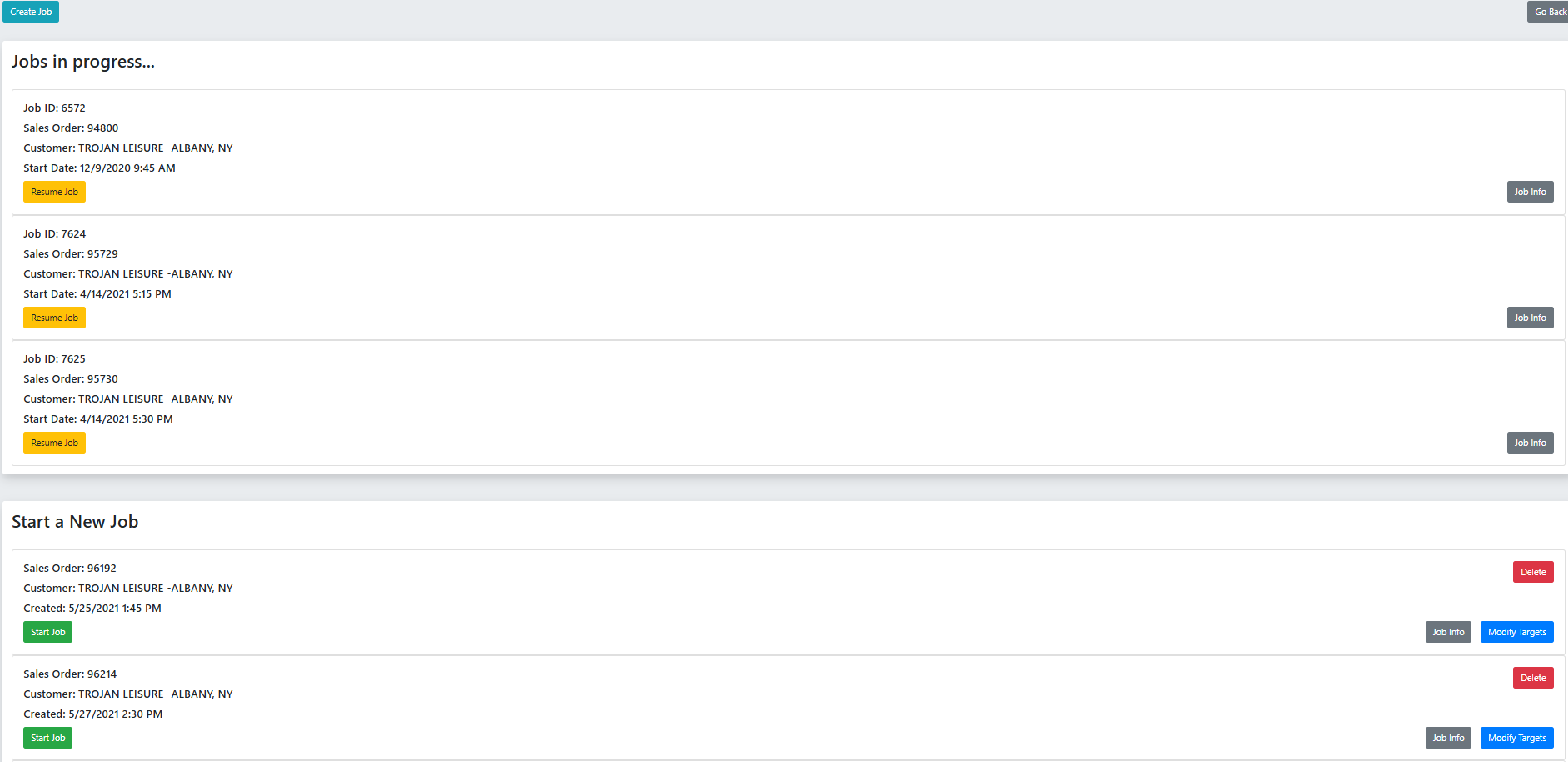
The Step Jobs page provides a comprehensive overview of all available Pool Step jobs using a card-based layout. Each job is displayed in an individual card containing key information and action buttons.
Page Header:

  • Title: "Step Jobs"
  • Description: "This page shows you all Pool Step jobs that have been transitioned or are new and have not yet been started."
  • Provides context for the page's purpose

Job Cards:

Each job card displays the following information:

  • Sales Order Number - Links the job to the customer order
  • Customer Name - Shows which customer the job is for
  • Step Targets - Displays the quantity targets for each step type (visible in collapsed view)
  • Action Buttons - Provides access to various job operations

![INSERT SCREENSHOT HERE: Full view of the Step Jobs page showing multiple job cards with sales orders, customer names, and action buttons.]

Available Actions:

The action button row at the bottom of each card varies based on user permissions:

All Users:

  • View Job Info (Blue button with info icon) - Opens modal showing comprehensive job details
  • Resume/Start Lines Job (Green "Resume Lines Job" button) - Navigates to the Job In Progress page

Admin Users Only:

  • Modify Targets (Orange button with edit icon) - Opens modal to adjust step quantity targets
  • Delete (Red button with trash icon) - Prompts for confirmation before deleting the job
  • Create Job (Blue "+ Create Job" button, top of page) - Opens modal to create a new Pool Step job

Interactive Elements:

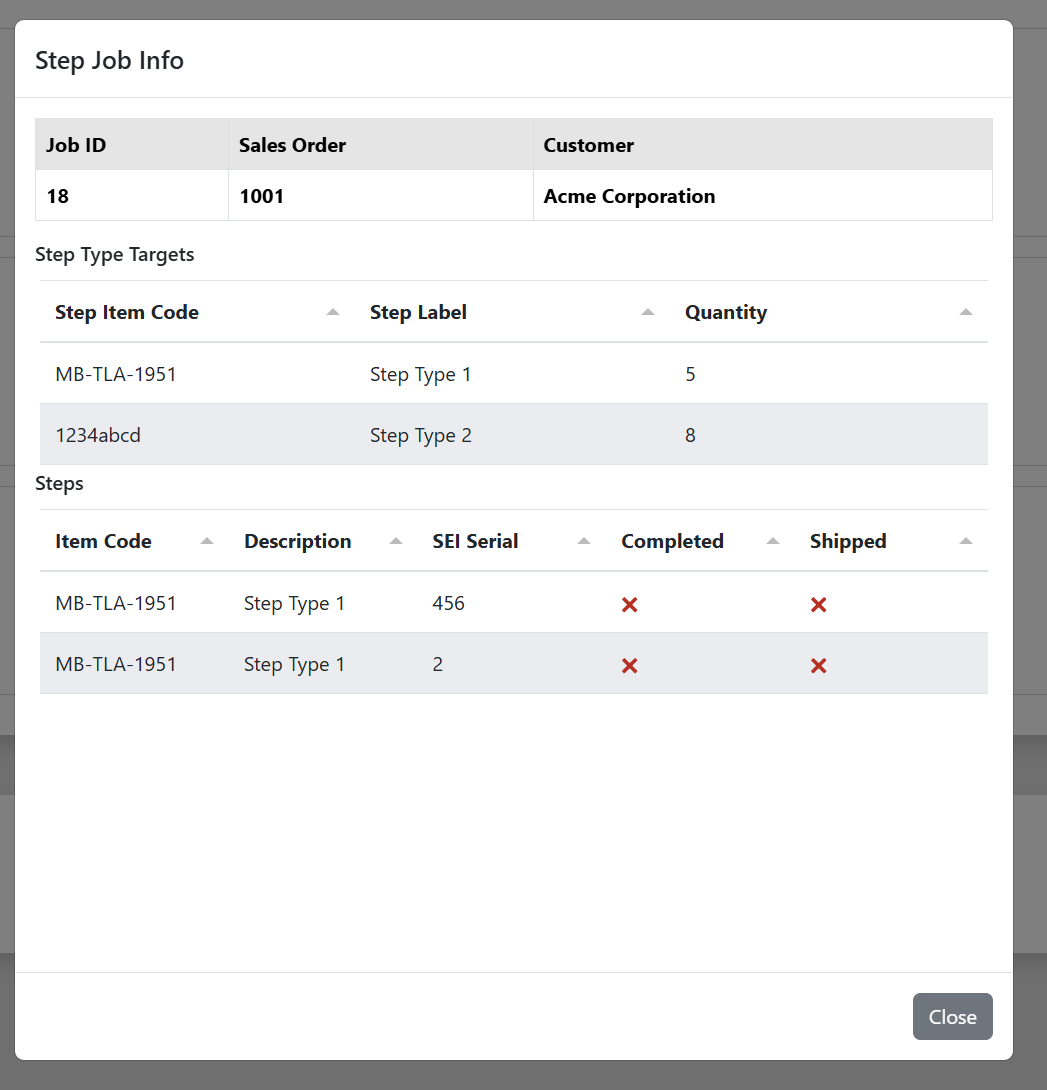
  1. View Job Info Modal:

    • Displays in a centered modal overlay
    • Shows Job ID, Sales Order #, Sales Order Customer
    • Lists all Step Targets with quantities
    • Enumerates individual Steps already created (if any)
    • Close button to dismiss modal

    ![INSERT SCREENSHOT HERE: Job Info modal showing detailed information including job ID, sales order details, step targets, and list of completed steps.]

  2. Modify Targets Modal:

    • Presents an editable table with step types and current quantities
    • Each quantity field is clickable and editable
    • Red highlighting on fields that require attention
    • "Update Targets" button to save changes
    • Real-time validation ensures targets are valid numbers

    ![INSERT SCREENSHOT HERE: Modify Targets modal showing editable table with step types and quantity input fields.]

  3. Delete Job Confirmation:

    • Warning modal with red accent
    • Clear message: "Are you sure you want to delete this job?"
    • Note about SAGE integration: "If you delete a job that was created by SAGE it will re-appear after the next import. Once the SAGE sales order is set as complete in SAGE it will no longer create the job in this application."
    • Two buttons: "Cancel" (gray) and "Yes, delete this job" (red)
    • Success notification appears in top-right corner after deletion
    • Page automatically refreshes after deletion

    ![INSERT SCREENSHOT HERE: Delete confirmation modal with warning message and SAGE integration note.]

  4. Create Job Modal:

    • Sales Order Field - Searchable dropdown with auto-suggest
    • Step Target Inputs - Individual quantity fields for each step type
    • Create Missing Sales Order Button - For when the desired sales order doesn't exist
    • Create Job Button (Blue, bottom-right) - Submits the new job
    • Success notification appears after creation
    • Page refreshes to show the newly created job

    ![INSERT SCREENSHOT HERE: Create Job modal showing sales order dropdown and step target input fields.]

  5. Create Missing Sales Order Modal:

    • Appears when user clicks "Create Missing Sales Order"
    • Sales Order # Input - Must be unique
    • Customer Name Input - Free text field
    • Create Button - Submits the new sales order
    • Automatically selects the newly created sales order in the Create Job form
    • Closes and returns to Create Job modal

    ![INSERT SCREENSHOT HERE: Create Missing Sales Order modal with sales order number and customer name fields.]

Job In Progress Page

The Job In Progress page provides the active production interface where workers track individual step creation in real-time.
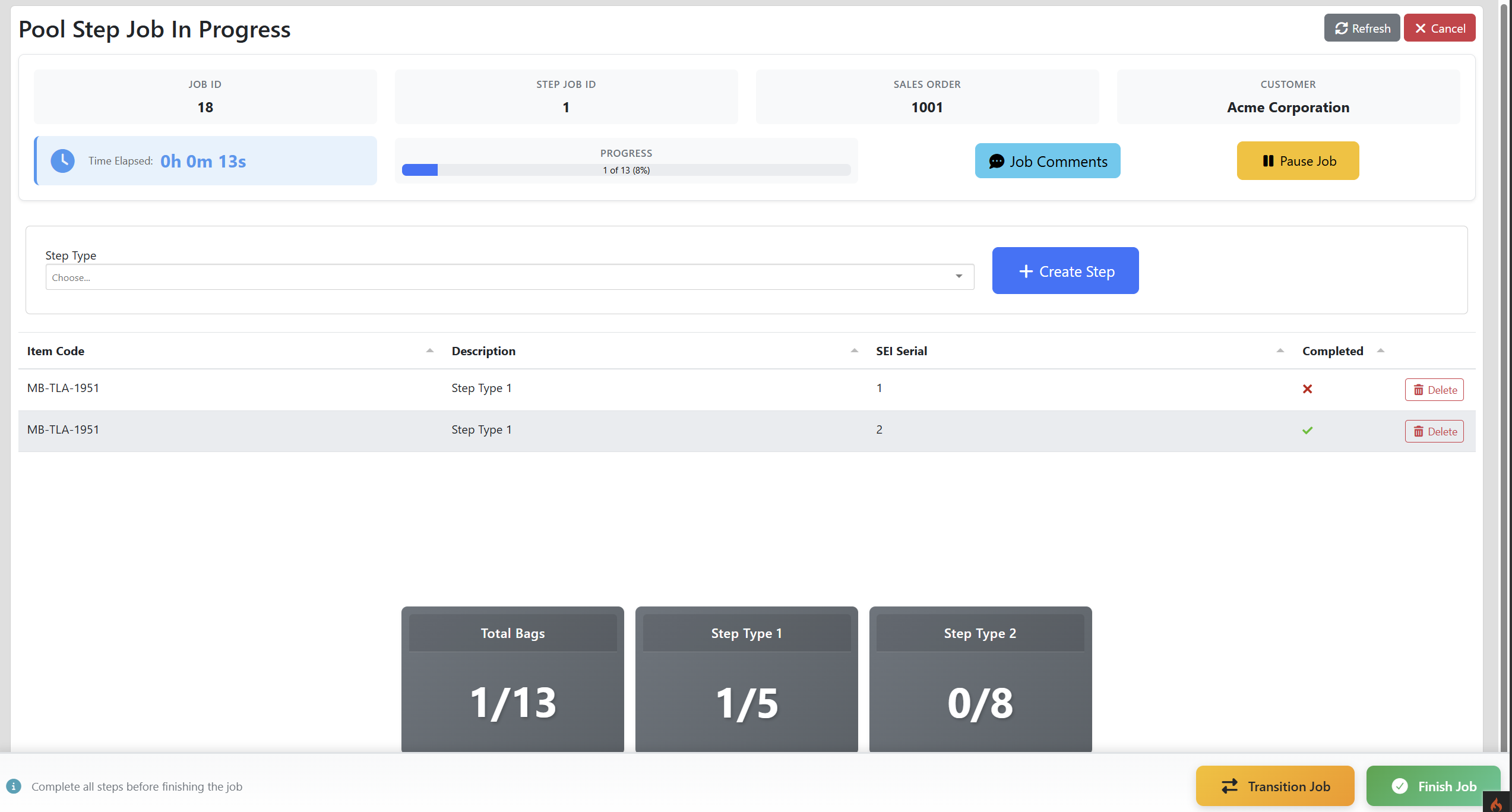
Page Header:

  • Displays the current job's Sales Order number
  • Shows customer name
  • Displays job ID for reference

Time Tracking:

  • Elapsed Time Display - Shows hours:minutes:seconds
  • Auto-Update - Updates every 5 seconds while active
  • Pause Job Button - Stops time tracking (button changes to "Resume Job")
  • Timer persists in database even if user navigates away

Step Creation Section:

  • Step Type Dropdown - Select from available step types for this job
  • Create Step Button (Blue) - Adds a new row to the steps table below
  • Steps are created without initial data and must be filled in

Steps Table:

The table displays all steps created for the current job with the following columns:

  • Step # - Sequential number for the step
  • Step Type - The type of step being manufactured
  • SEI Serial - Unique identifier input field (editable)
  • Completed At - Timestamp input field (editable with date/time picker)
  • Actions - Delete button for removing incorrect entries
![INSERT SCREENSHOT HERE: Job In Progress page showing time tracking, step creation form, and table of created steps with SEI Serial and Completed At fields.]

Interactive Fields:

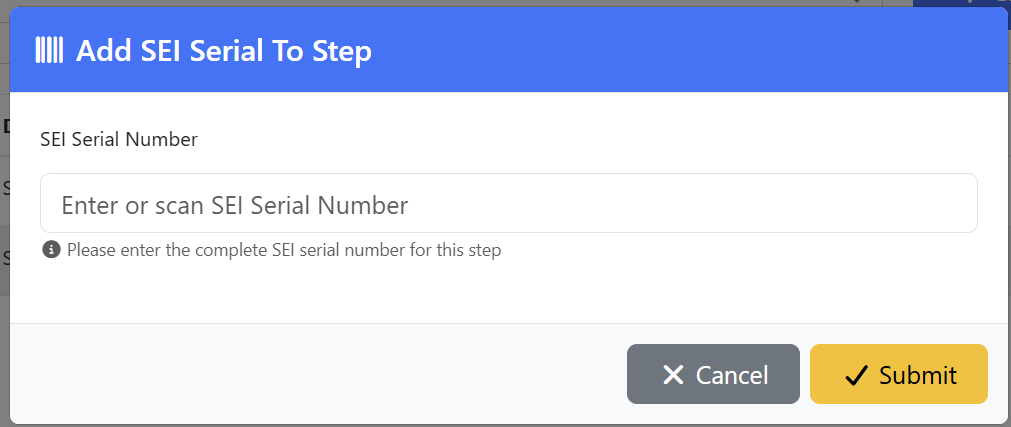
  1. SEI Serial Input:

    • Text input field
    • Must be unique within the job (validation enforced on save)
    • Red highlighting if empty or duplicate
    • Saves automatically on blur or can be saved manually

    ![INSERT SCREENSHOT HERE: Close-up of SEI Serial input field showing the editable text field and validation state.]

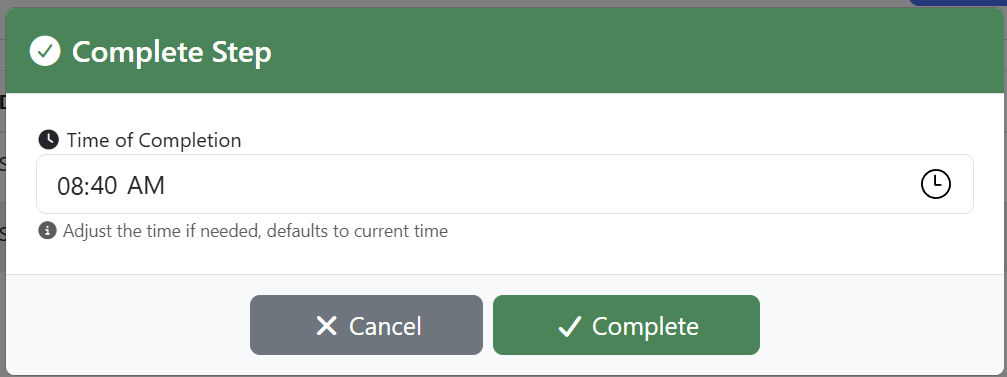
  2. Completed At Input:

    • Date/time picker control
    • Defaults to current timestamp when opened
    • Format: YYYY-MM-DD HH:MM:SS
    • Can be adjusted for backdating if step was completed earlier
    • Saves automatically on blur or can be saved manually

    ![INSERT SCREENSHOT HERE: Completed At date/time picker showing calendar and time selection interface.]

Job Control Buttons:

Located at the bottom of the page:

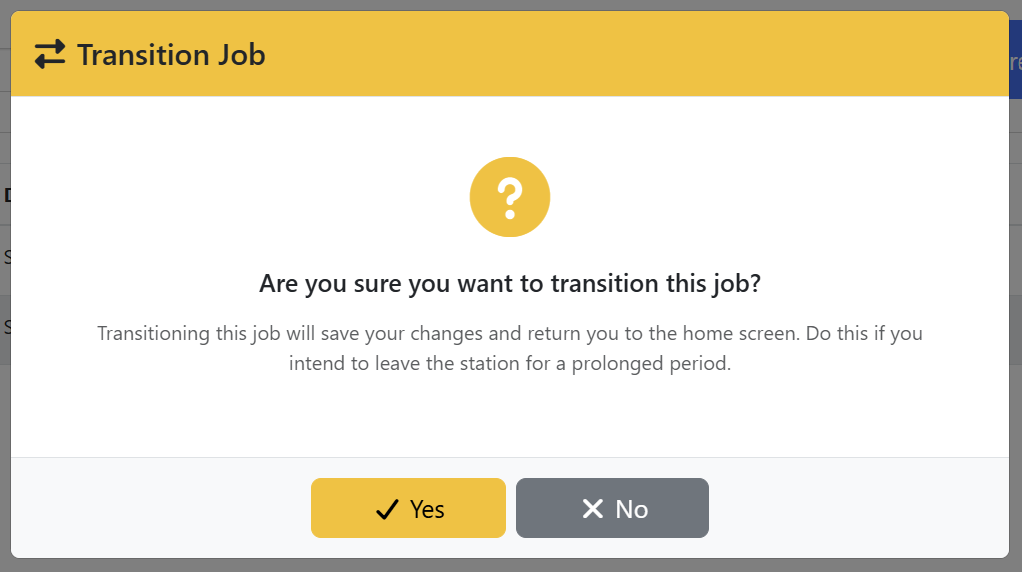
  1. Transition Job (Blue button):

    • Saves current progress
    • Returns job to Step Jobs page for later resumption
    • Does not complete the job
    • Useful for shift changes or when switching between jobs
    • Confirmation modal may appear

    ![INSERT SCREENSHOT HERE: Transition Job confirmation modal asking if user wants to save and return the job to the queue.]

  2. Cancel Job (Yellow/Orange button):

    • Abandons current session without saving
    • Returns to Step Jobs page
    • May prompt for confirmation to prevent accidental data loss
  3. Finish Job (Green button):

    • Marks the job as complete
    • Validates all required fields are filled
    • Checks if step targets have been met (may warn if not)
    • Removes job from Step Jobs page
    • May prompt for final confirmation

Responsive Behavior:

  • Table scrolls horizontally on mobile devices
  • Input fields stack vertically on smaller screens
  • Action buttons remain accessible at all viewport sizes
  • Time tracker remains visible at top of page when scrolling

Visual Feedback:

  • Success notifications appear in top-right corner (green)
  • Error notifications appear in top-right corner (red)
  • Warning notifications appear in top-right corner (yellow/orange)
  • Loading spinners appear during save operations
  • Red highlighting on incomplete or invalid fields

Back-End Logic

Database Schema

The Pool Steps system relies on several interconnected database tables:

Primary Tables:

  • step_job - Stores Pool Step job records with sales order associations
  • step - Individual step records created during production
  • step_target - Quantity targets for each step type per job
  • step_type - Reference table for available step types
  • sales_order - Sales order information from SAGE or manually created
  • step_job_time - Time tracking records for jobs in progress

Key Relationships:

  • Each step_job belongs to one sales_order
  • Each step_job has multiple step_target records (one per step type)
  • Each step_job has multiple step records (actual produced steps)
  • Each step has one step_type
  • Each step_job can have multiple step_job_time records for tracking work sessions

Step Jobs Page Logic

Retrieving Jobs:

The system queries for step jobs that meet specific criteria:

  • Jobs with status "new" (not yet started)
  • Jobs with status "transitioned" (previously worked on, but paused)
  • Excludes jobs with status "in_progress" (currently being worked on by someone)
  • Excludes jobs with status "completed"

Jobs are displayed with:

  • Sales order number and customer name (from sales_order table)
  • Step targets (from step_target table joined with step_type)
  • Count of steps already created (from step table)

View Job Info:

When user clicks "View Job Info", the system:

  1. Queries the step_job table for job details
  2. Joins with sales_order to get order and customer information
  3. Queries step_target table for all targets associated with the job
  4. Queries step table for all steps already created for this job
  5. Returns data as JSON to populate the modal

Modify Targets (Admin Only):

Update process:

  1. System validates user has admin permissions
  2. Retrieves current targets from step_target table
  3. Displays editable form with current values
  4. On submit, validates all quantities are positive integers
  5. Updates step_target records with new values
  6. Logs the modification with user ID and timestamp

Delete Job (Admin Only):

Deletion process:

  1. Validates user has admin permissions
  2. Checks if job was created by SAGE import (flagged in database)
  3. Displays warning about SAGE re-import if applicable
  4. On confirmation, cascades delete to:
    • All step_target records for the job
    • All step records for the job
    • All step_job_time records for the job
    • The step_job record itself
  5. Returns success response and page refreshes

Create Job (Admin Only):

Creation process:

  1. Validates user has admin permissions
  2. Validates sales order exists or creates new one
  3. Creates step_job record with:
    • sales_order_id (foreign key)
    • status = "new"
    • created_by (user ID)
    • created_at (timestamp)
    • sage_imported = false (manual creation flag)
  4. Creates step_target records for each specified step type with quantities
  5. Returns success response with new job ID
  6. Page refreshes to show new job

Create Missing Sales Order:

When sales order doesn't exist:

  1. Validates sales order number is unique
  2. Creates sales_order record with:
    • order_number (unique)
    • customer_name
    • sage_imported = false
    • created_at (timestamp)
  3. Returns new sales order ID to populate Create Job form

Resume/Start Job:

When user clicks "Resume Lines Job":

  1. Updates step_job status to "in_progress"
  2. Creates new step_job_time record with:
    • step_job_id (foreign key)
    • user_id (current user)
    • start_time (current timestamp)
    • end_time = null
    • paused = false
  3. Redirects to Job In Progress page with job ID parameter

Job In Progress Page Logic

Loading Job Data:

On page load:

  1. Retrieves job ID from URL parameter
  2. Queries step_job table with joins to sales_order
  3. Queries all step_target records for the job
  4. Queries all existing step records for the job
  5. Queries active step_job_time record (where end_time is null)
  6. Loads available step_type records for dropdown
  7. Renders page with all data

Time Tracking:

The system implements server-side time tracking:

  • JavaScript timer updates display every 5 seconds
  • Every 5 seconds, AJAX request updates step_job_time record:
    • Calculates elapsed time from start_time to current time
    • Updates elapsed_seconds field in database
    • Returns updated time to display
  • When "Pause Job" is clicked:
    • Sets paused = true in step_job_time record
    • Timer stops updating
    • Button text changes to "Resume Job"
  • When "Resume Job" is clicked:
    • Sets paused = false
    • Timer resumes updating
    • Button text changes to "Pause Job"

Creating Steps:

When user creates a step:

  1. Validates step type is valid for this job (matches a target)
  2. Creates step record with:
    • step_job_id (foreign key)
    • step_type_id (selected type)
    • sei_serial = null (to be filled in)
    • completed_at = null (to be filled in)
    • created_at (timestamp)
  3. Returns new step ID and adds row to table

Updating SEI Serial:

When user enters SEI Serial:

  1. Validates serial is not empty
  2. Validates serial is unique within this job (queries step table)
  3. If validation passes:
    • Updates step record with sei_serial value
    • Removes red highlighting
    • Shows success notification
  4. If validation fails:
    • Maintains red highlighting
    • Shows error message (e.g., "Serial number must be unique")
    • Does not save to database

Updating Completed At:

When user sets completion timestamp:

  1. Validates timestamp format (YYYY-MM-DD HH:MM:SS)
  2. Validates timestamp is not in the future
  3. Updates step record with completed_at value
  4. Removes red highlighting
  5. Shows success notification

Transition Job:

When user clicks "Transition Job":

  1. Validates all steps have required fields filled (SEI Serial, Completed At)
  2. Updates active step_job_time record:
    • Sets end_time to current timestamp
    • Calculates final elapsed_seconds
  3. Updates step_job status to "transitioned"
  4. Shows success notification
  5. Redirects to Step Jobs page

Cancel Job:

When user clicks "Cancel Job":

  1. Displays confirmation modal
  2. On confirmation:
    • Updates active step_job_time record with end_time
    • Updates step_job status to "new" (returns to queue)
    • No step data is deleted (preserved for next session)
  3. Redirects to Step Jobs page

Finish Job:

When user clicks "Finish Job":

  1. Validates all steps have SEI Serial and Completed At filled
  2. Compares step counts to targets:
    • Counts steps by type
    • Compares to step_target quantities
    • Warns if targets not met (but allows completion)
  3. Updates active step_job_time record with end_time
  4. Updates step_job status to "completed"
  5. Calculates total production time from all step_job_time records
  6. Shows success notification with completion summary
  7. Redirects to Step Jobs page

SAGE Integration

Import Process:

The system periodically imports sales orders from SAGE ERP:

  1. Scheduled job connects to SAGE database
  2. Queries for active sales orders requiring pool steps
  3. For each sales order:
    • Checks if sales_order already exists (by SAGE order number)
    • If not, creates sales_order record with sage_imported = true
    • Checks if step_job exists for this sales order
    • If not, creates step_job with default targets based on order specifications
    • Creates step_target records based on order line items
  4. Logs import activity

SAGE Order Completion:

When order is marked complete in SAGE:

  • Next import cycle detects completion status
  • step_job record flagged as sage_completed = true
  • Job no longer appears in Step Jobs page
  • If job was manually deleted, it will not be re-created

Manual Job Handling:

Jobs created manually (not from SAGE):

  • Have sage_imported = false flag
  • Will not be affected by SAGE import process
  • Can be deleted permanently by admins

API Endpoints

Step Jobs API:

  • GET /api/step_jobs - List all new/transitioned jobs
  • GET /api/step_jobs/\{id\} - Get specific job details
  • POST /api/step_jobs - Create new job (admin only)
  • PUT /api/step_jobs/\{id\}/targets - Update job targets (admin only)
  • DELETE /api/step_jobs/\{id\} - Delete job (admin only)
  • POST /api/step_jobs/\{id\}/start - Start/resume job

Steps API:

  • GET /api/step_jobs/\{job_id\}/steps - List all steps for a job
  • POST /api/step_jobs/\{job_id\}/steps - Create new step
  • PUT /api/steps/\{id\} - Update step (SEI Serial, Completed At)
  • DELETE /api/steps/\{id\} - Delete step

Job Time Tracking API:

  • GET /api/step_jobs/\{job_id\}/time - Get current time tracking info
  • PUT /api/step_jobs/\{job_id\}/time - Update elapsed time (auto-called every 5s)
  • POST /api/step_jobs/\{job_id\}/time/pause - Pause time tracking
  • POST /api/step_jobs/\{job_id\}/time/resume - Resume time tracking

Job Actions API:

  • POST /api/step_jobs/\{id\}/transition - Transition job back to queue
  • POST /api/step_jobs/\{id\}/cancel - Cancel job session
  • POST /api/step_jobs/\{id\}/finish - Complete job

Sales Order API:

  • GET /api/sales_orders - List sales orders (for dropdown)
  • POST /api/sales_orders - Create missing sales order

Authorization

Permission Levels:

  1. All Users:

    • View Step Jobs page
    • View job information
    • Start/resume jobs
    • Create steps
    • Update step details
    • Transition/cancel/finish jobs
  2. Admin Users Only:

    • Modify job targets
    • Delete jobs
    • Create jobs manually
    • Create sales orders manually
    • Access SAGE import logs

Implementation:

Authorization is checked at multiple levels:

  • Middleware on API routes validates user group membership
  • Controller methods check permissions before executing admin actions
  • Frontend buttons conditionally render based on user permissions
  • Database triggers log all administrative actions for audit trail

Developer Notes

SEI Serial Number System

Purpose:

  • SEI Serial numbers serve as unique identifiers for each pool step manufactured
  • Enables tracking of individual steps through quality control and shipping
  • Links physical products to digital production records
  • Supports warranty tracking and customer service inquiries

Uniqueness Enforcement:

  • Serial numbers must be unique within each job (not globally unique)
  • Database constraint prevents duplicate serials within same step_job_id
  • Frontend validation provides immediate feedback before database save
  • Different jobs can theoretically have overlapping serials (though not recommended in practice)

Format:

  • No specific format enforced at the database level
  • Typically follows company standards (e.g., alphanumeric codes)
  • Common patterns: "PS-2024-001", "STEP12345", etc.
  • Recommend documenting format standards in training materials

Time Tracking Implementation

Auto-Update Mechanism:

The 5-second auto-update is implemented using JavaScript intervals:

setInterval(function() {
if (!isPaused) {
updateElapsedTime(jobId);
}
}, 5000);

Why 5 seconds?

  • Balances accuracy with server load
  • Provides near-real-time updates without excessive API calls
  • 5-second granularity sufficient for production time metrics
  • Reduces database write operations compared to 1-second updates

Persistence Handling:

  • Timer continues running even if user navigates away (tracked in database)
  • When user returns to Job In Progress page, elapsed time resumes from database value
  • Multiple users cannot work on same job simultaneously (enforced by status check)
  • Pausing timer prevents time accumulation during breaks

Edge Cases:

  • Browser crash: Time continues in database, resumes when user returns
  • Network interruption: Time updates queue and sync when connection restored
  • Session timeout: Active job transitions back to queue automatically

Step Target Validation

Target vs. Actual:

  • System allows job completion even if targets not met
  • Warning displays if actual counts < targets
  • Warning displays if actual counts > targets (may indicate data entry error)
  • Final decision to complete job remains with user

Business Logic:

  • Targets are guidelines, not hard limits
  • Production realities may require flexibility (material issues, order changes)
  • Over-production may occur for quality control samples
  • Under-production tracked for reporting and analysis

SAGE Integration Details

Import Schedule:

  • Typically runs every 15-30 minutes (configurable)
  • Can be triggered manually by admins
  • Runs as background cron job or scheduled task

Data Mapping:

SAGE sales orders map to Pool Steps system as follows:

  • SAGE Order Number → sales_order.order_number
  • SAGE Customer Name → sales_order.customer_name
  • SAGE Line Items → step_target records (parsed by step type)
  • SAGE Order Status → Determines if job should be active

Conflict Resolution:

  • If SAGE order changes after import, next sync updates existing records
  • Target quantity changes in SAGE update step_target records
  • If job in progress when SAGE updates, changes queue until job completes
  • Manually modified targets are overwritten by SAGE updates (logged for review)

Import Logging:

  • All imports logged to sage_import_log table
  • Records timestamp, orders processed, errors encountered
  • Admin dashboard displays recent import history
  • Errors trigger email notifications to administrators

Database Indexing

Performance Optimization:

Key indexes for Pool Steps tables:

  • step_job.sales_order_id (foreign key, frequent joins)
  • step_job.status (filtered queries for job lists)
  • step.step_job_id (foreign key, loading job steps)
  • step.sei_serial + step.step_job_id (composite, uniqueness checks)
  • step_target.step_job_id (foreign key, loading targets)
  • step_job_time.step_job_id (foreign key, time tracking queries)
  • sales_order.order_number (unique, SAGE lookups)

Query Performance:

  • Step Jobs page query typically < 100ms with proper indexes
  • Job In Progress page load typically < 200ms
  • SEI Serial uniqueness check < 50ms
  • Time update API call < 30ms

Frontend Framework

Technologies Used:

  • jQuery for DOM manipulation and AJAX calls
  • Bootstrap 5 for responsive layout and modals
  • Bootstrap Icons or Material Design Icons for iconography
  • Chart.js or similar for data visualization (if applicable)
  • Date/time picker library (e.g., flatpickr, Bootstrap Datepicker)

JavaScript Organization:

  • pool_steps.js - Main logic for Step Jobs page
  • pool_steps_in_progress.js - Job In Progress page logic
  • step_job_api.js - API wrapper functions for all endpoints
  • validation.js - Client-side validation helpers

Error Handling

API Response Patterns:

All API endpoints return consistent JSON responses:

{
"success": true,
"message": "Step created successfully",
"data": { "step_id": 123 }
}

Or on error:

{
"success": false,
"message": "SEI Serial must be unique",
"errors": { "sei_serial": ["This serial already exists"] }
}

Frontend Error Display:

  • Toast notifications for success/error messages
  • Inline validation errors below form fields
  • Modal alerts for critical errors requiring user action
  • Console logging for debugging (development mode only)

Backend Error Logging:

  • All exceptions logged to application log files
  • Database errors logged with full query context
  • API errors include request payload for debugging
  • User ID and timestamp logged with all errors

Testing Considerations

Unit Tests:

  • Test step creation with valid/invalid data
  • Test SEI Serial uniqueness validation
  • Test time tracking calculations
  • Test SAGE import data mapping
  • Test permission checks for admin actions

Integration Tests:

  • Test full job workflow (create → start → work → complete)
  • Test job transition and resumption
  • Test concurrent user scenarios
  • Test SAGE import end-to-end
  • Test API endpoint authentication

Manual Testing Checklist:

  • Create job with missing sales order
  • Modify targets and verify updates
  • Delete SAGE-imported job and verify warning
  • Start job and verify time tracking
  • Pause/resume timer and verify accuracy
  • Create steps with duplicate SEI Serial (should fail)
  • Transition job and verify it returns to queue
  • Cancel job and verify data preserved
  • Finish job with incomplete steps (should warn)
  • Finish job successfully and verify completion

Code File Locations

Controllers:

  • app/Controllers/PoolSteps.php - Main controller for Pool Steps pages
  • app/Controllers/Api/StepJob.php - Step Jobs API
  • app/Controllers/Api/Step.php - Steps API
  • app/Controllers/Api/SalesOrder.php - Sales Orders API

Models:

  • app/Models/StepJobModel.php - Step job data model
  • app/Models/StepModel.php - Individual step data model
  • app/Models/StepTargetModel.php - Step targets data model
  • app/Models/StepTypeModel.php - Step types reference data
  • app/Models/SalesOrderModel.php - Sales order data model
  • app/Models/StepJobTimeModel.php - Time tracking data model

Views:

  • app/Views/pool_steps/jobs.php - Step Jobs page
  • app/Views/pool_steps/in_progress.php - Job In Progress page
  • app/Views/pool_steps/modals/ - Modal templates

JavaScript:

  • public/assets/js/pool_steps.js
  • public/assets/js/pool_steps_in_progress.js
  • public/assets/js/api/step_job_api.js

Database Migrations:

  • app/Database/Migrations/YYYY_MM_DD_HHMMSS_create_step_jobs_table.php
  • app/Database/Migrations/YYYY_MM_DD_HHMMSS_create_steps_table.php
  • app/Database/Migrations/YYYY_MM_DD_HHMMSS_create_step_targets_table.php
  • app/Database/Migrations/YYYY_MM_DD_HHMMSS_create_step_job_times_table.php

Future Enhancements

Potential Features:

  • Barcode scanning for SEI Serial entry
  • Mobile app for production floor use
  • Real-time dashboard showing active jobs and production rates
  • Photo upload capability for quality control documentation
  • Integration with shipping system for automatic order fulfillment
  • Production efficiency analytics and reporting
  • Email notifications for job completion
  • SMS alerts for critical production issues

Technical Improvements:

  • WebSocket implementation for real-time time tracking updates
  • Offline mode with local storage and sync when online
  • Bulk step creation for high-volume jobs
  • Export functionality for production reports
  • API rate limiting for time tracking endpoints

Example Usage

Example 1: Starting a New Job from SAGE Import

Scenario: A sales order from SAGE has imported and created a Pool Step job. Worker needs to begin production.

  1. Worker navigates to Pool Steps from home page
  2. Step Jobs page displays new job:
    • Sales Order: SO-2024-1234
    • Customer: ABC Pool Supply
    • Targets: Step Type A (25), Step Type B (15)
  3. Worker clicks green "Resume Lines Job" button
  4. System creates time tracking record and navigates to Job In Progress page
  5. Page displays:
    • Sales Order: SO-2024-1234
    • Customer: ABC Pool Supply
    • Job ID: #456
    • Elapsed Time: 00:00:00 (begins counting)
    • Empty steps table
  6. Worker selects "Step Type A" from dropdown
  7. Worker clicks "Create Step" button
  8. New row appears in table with empty SEI Serial and Completed At fields (red highlighting)
  9. Worker enters SEI Serial: "PS-2024-A-001"
  10. Red highlighting clears from SEI Serial field
  11. Worker clicks Completed At field, date/time picker opens
  12. Worker selects current time, red highlighting clears
  13. Worker repeats steps 6-12 for remaining steps
  14. After all 40 steps created (25 Type A + 15 Type B):
    • All fields filled and validated
    • Elapsed time shows 02:34:18
  15. Worker clicks green "Finish Job" button
  16. System validates all fields complete
  17. System compares counts: 25 Type A (✓), 15 Type B (✓)
  18. Confirmation modal displays: "Job completed successfully. Total time: 2 hours, 34 minutes"
  19. Worker clicks "OK"
  20. System redirects to Step Jobs page
  21. Completed job no longer appears in list

Example 2: Transitioning a Job for Shift Change

Scenario: Worker needs to transition job to next shift.

  1. Worker is on Job In Progress page with 15 of 40 steps completed
  2. Elapsed time shows 01:15:22
  3. Worker clicks blue "Transition Job" button
  4. Confirmation modal appears: "Save progress and return job to queue?"
  5. Worker clicks "Yes, Transition"
  6. System validates all created steps have SEI Serial and Completed At filled
  7. System updates time tracking record with end time
  8. System changes job status to "transitioned"
  9. Success notification: "Job transitioned successfully"
  10. System redirects to Step Jobs page
  11. Next shift worker arrives, sees job in Step Jobs list
  12. Shows progress: 15 of 40 steps completed
  13. Next worker clicks "Resume Lines Job"
  14. System creates new time tracking record
  15. Job In Progress page loads showing 15 existing steps
  16. Worker continues from where previous worker left off
  17. New elapsed time counter starts at 00:00:00 (new session)

Example 3: Admin Creating Manual Job

Scenario: Admin needs to create a Pool Step job for a rush order not yet in SAGE.

  1. Admin navigates to Step Jobs page
  2. Clicks blue "+ Create Job" button at top
  3. Create Job modal opens
  4. Admin types "SO-2024-RUSH-001" in Sales Order field
  5. Dropdown shows "No results found"
  6. Admin clicks "Create Missing Sales Order" button
  7. Create Missing Sales Order modal appears
  8. Admin enters:
    • Sales Order #: SO-2024-RUSH-001
    • Customer: XYZ Emergency Pool Repair
  9. Admin clicks "Create" button
  10. New sales order created and automatically selected
  11. Returns to Create Job modal
  12. Admin enters step targets:
    • Step Type A: 10
    • Step Type B: 5
    • Step Type C: 0 (leaves blank)
  13. Admin clicks "Create Job" button at bottom-right
  14. System validates inputs
  15. System creates step job with status "new"
  16. System creates step target records for Type A and Type B
  17. Success notification: "Step job created"
  18. Page refreshes, new job appears in list
  19. Worker can now start the job normally

Example 4: Admin Modifying Targets for Order Change

Scenario: Customer calls and increases order quantity. Admin needs to update job targets.

  1. Admin sees job in Step Jobs list:
    • SO-2024-5678
    • Current targets: Type A (20), Type B (10)
    • 5 steps already completed
  2. Admin clicks orange "Modify Targets" button
  3. Modify Targets modal displays editable table:
    • Step Type A: [20] (editable field)
    • Step Type B: [10] (editable field)
  4. Admin clicks on "20" for Type A
  5. Changes to "30"
  6. Admin clicks on "10" for Type B
  7. Changes to "15"
  8. Admin clicks "Update Targets" button
  9. System validates quantities are positive integers
  10. System updates step_target records
  11. System logs modification with admin user ID and timestamp
  12. Success notification: "Targets updated successfully"
  13. Modal closes, page refreshes
  14. Job card now shows updated targets: Type A (30), Type B (15)
  15. When worker resumes job, they see new targets
  16. 5 existing steps preserved, needs 40 more total

Example 5: Handling Duplicate SEI Serial Error

Scenario: Worker accidentally tries to enter a duplicate serial number.

  1. Worker is on Job In Progress page with 10 steps created
  2. One existing step has SEI Serial "PS-001"
  3. Worker creates new step (Step #11)
  4. Worker enters SEI Serial "PS-001" (accidentally duplicating)
  5. Worker tabs to Completed At field
  6. On blur, system validates SEI Serial
  7. AJAX request checks uniqueness in database
  8. System finds duplicate within this job
  9. Error response returns to frontend
  10. Red highlighting appears on SEI Serial field
  11. Error toast notification: "SEI Serial must be unique within this job"
  12. Inline error message appears below field: "Serial 'PS-001' is already used in Step #3"
  13. Worker realizes mistake
  14. Worker changes SEI Serial to "PS-011"
  15. On blur, system validates again
  16. No duplicate found
  17. Red highlighting clears
  18. Success toast: "SEI Serial saved"
  19. Green checkmark icon briefly appears next to field
  20. Worker continues with Completed At field

Example 6: Completing Job with Insufficient Targets

Scenario: Job has targets not fully met due to material shortage.

  1. Worker has created 22 steps on job with targets:
    • Type A: 25 (target)
    • Type B: 15 (target)
  2. Actual completed:
    • Type A: 18 (short by 7)
    • Type B: 4 (short by 11)
  3. Worker receives instruction to complete job with partial quantities
  4. Worker clicks green "Finish Job" button
  5. System validates all 22 steps have complete data
  6. System compares actual to targets
  7. Warning modal appears:
    • "Target quantities not met:"
    • "Step Type A: 18 of 25 (7 short)"
    • "Step Type B: 4 of 15 (11 short)"
    • "Are you sure you want to complete this job?"
  8. Two buttons: "Cancel" and "Complete Anyway"
  9. Worker clicks "Complete Anyway"
  10. System marks job as completed
  11. System flags job with targets_not_met = true
  12. System adds note to job record for reporting
  13. Success notification: "Job completed (partial quantities)"
  14. Redirects to Step Jobs page
  15. Admin can later review partial completions report
  16. SAGE integration may require manual adjustment

Production Processes

  • Pre-Expansion - First step in producing foam blocks
  • Mold - Creating blocks from expanded beads
  • Lines 1 & 2 - Cutting operations for standard products
  • EIFS - EIFS board production process
  • Sill Seal - Sill seal boxing operations

Inventory Management

Sales & Orders

Administrative Functions

Reporting & Analytics

Technical Documentation

Home Page