📅 Schedule Management
The Schedule Management module is the core of the Shipping Application, allowing different departments to coordinate on order fulfillment and delivery. It Consolidates the Sales, Production, and Dashboard views into a unified workflow.
Dashboard View
The Dashboard provides a high-level overview of daily shipping activities, perfect for getting a quick status update on all moving parts. It aggregates data from both Sales and Production to show what is scheduled, what is in transit, and what is pending.
Sales View
The Sales view is where the shipping lifecycle begins. Sales representatives and administrators use this interface to input new orders and manage initial shipment details.
Creating a Shipment
- Click the Create Shipment button.
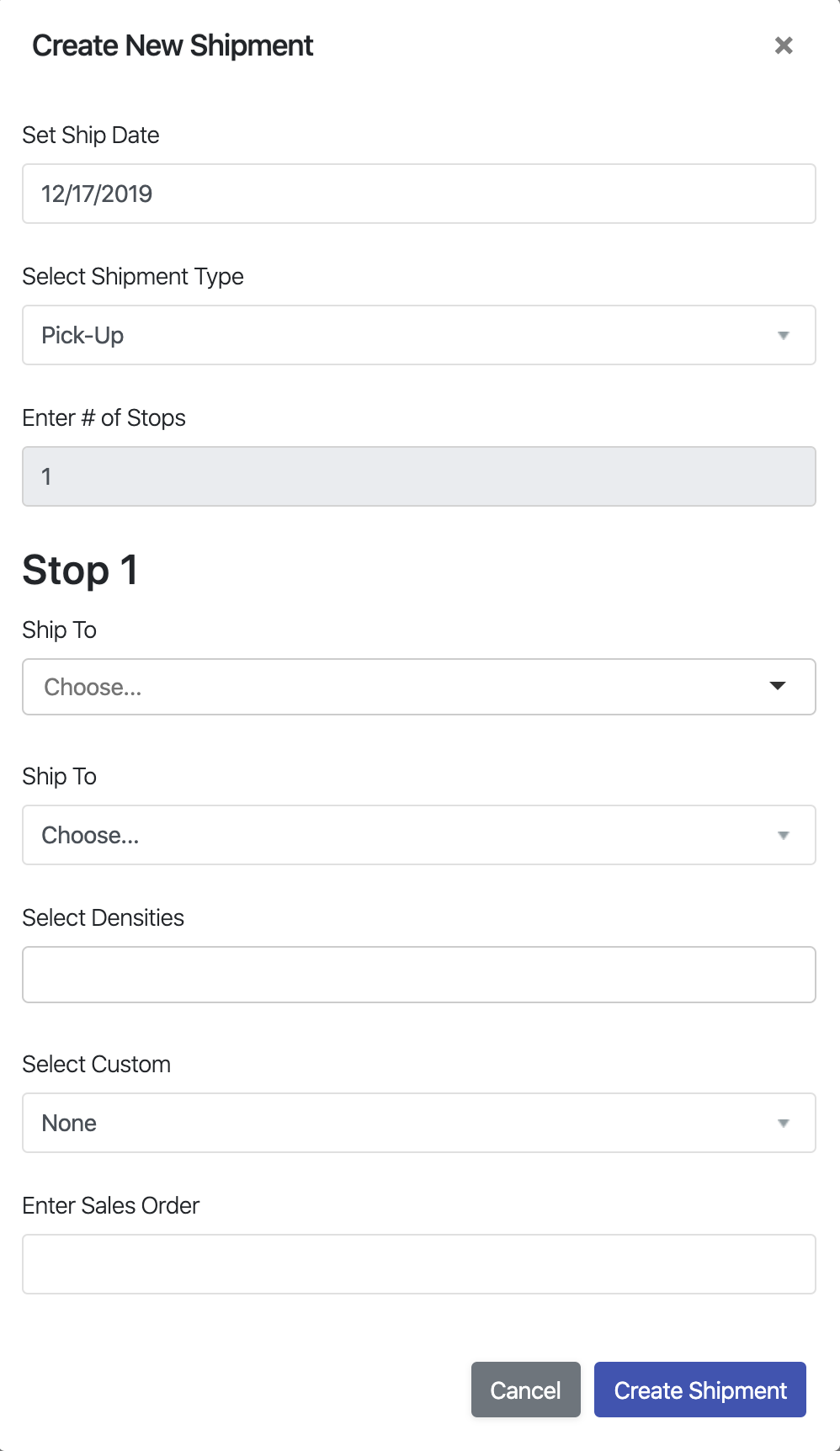
- In the 'Create New Shipment' modal, set the Ship Date.
- Select the Shipment Type:
- Shelter Enterprises: Standard company delivery.
- Pick-Up: Customer picking up the order.
- Outside Carrier: Third-party logistics provider.
- Enter the Number of Stops.
Tip: Click outside the text field after entering the number to refresh the form. If 'Pick-Up' or 'Outside Carrier' is selected, stops are locked to 1.
- Configure each Stop:
- Destination: Select Company and Type ('Job Site' or 'Branch').
- Location: Enter details or select from the dropdown. New locations can be added by typing the name and selecting "Add [Name]...".
- Details: Select densities (max 3), custom fields, and enter the Sales Order number.
- Click Create Shipment to finalize.
Managing Existing Shipments (Sales)
- Update Info: Click the shipment card header to modify details like ship date or type.
- Add Stop: Click the card body -> Add Stop.
- Reorder Stops: Use the Move Stop Up button (available for 2nd+ stops).
- Move Stop: Click the card body -> Move Stop To New Shipment to split a load.
- Delete: Remove a stop via the stop's top-right corner, or delete the entire shipment via the Delete Shipment button in the card body.
Production View
The Production view focuses on the physical execution of the shipment. It simplifies the interface to allow specialized staff to update status and logistics details without altering the core order data.
Updatable Fields
Production employees can modify:
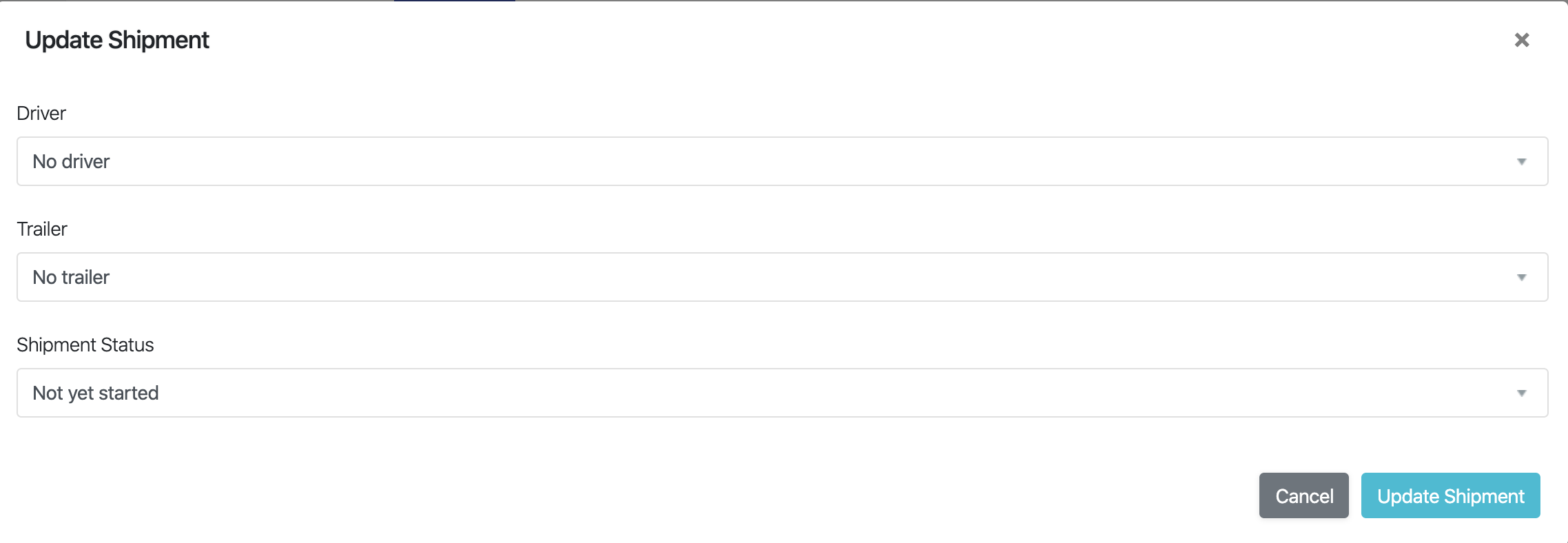
- Driver Assignment: Assign a specific driver to the load.
- Shipment Status: Update progress (e.g., Loading, En Route, Delivered).
- Trailer Number: Record the specific trailer being used.
Workflow
- Click on a shipment to open the Update Modal.
- Modify the Driver, Status, or Trailer Number.
- Click Update Shipment to save.
Note: This restricted view ensures data integrity, preventing accidental changes to customer or order details by non-sales staff.